Custom Roles control which features a user can access and what actions they may perform. They are useful when someone needs access to certain tools but does not require full system-wide permissions.
When to Use Custom Roles
Custom Roles are helpful when you want to:
Allow someone to use a specific feature without granting full admin rights
Give specialists (HR, Payroll, IT) access to the features they need
Protect system-wide settings by assigning only necessary permissions
Build a scalable and secure access model as your company grows
Common examples:
Payroll Administrator: Needs access to Compensation features but no administrative controls.
Reporting Analyst: Should access the Reporting module but not sensitive configuration areas.
What Makes Up a Custom Role?
Each Custom Role has two parts:
- Permissions: control what a user can do
- Access Payroll Reports
- Manage Onboarding
- Export Reports
- Access Employee Profile documents
- Scope: define where the permissions apply
- Scope is used when a feature supports scoping (for example, limiting a workflow to one office).
Types of Permissions
| 1) Company-wide Permissions | 2) Scoped Permissions |
Company-wide permissions apply across the entire company. Use these when:
| Some permissions can be limited to a specific part of your company, such as:
Use scoped permissions when a feature supports scoping and you want to narrow a user’s access area. |
How to create a Custom Role
- Go to the "Custom Roles" tab in Settings > Permissions
- Create new custom role:
| Step 1 | Set a clear title and short description for each Custom Role so you can easily recognize and find it later. The Preview updates automatically as you go and shows the role name, description, and permissions you’re configuring. | 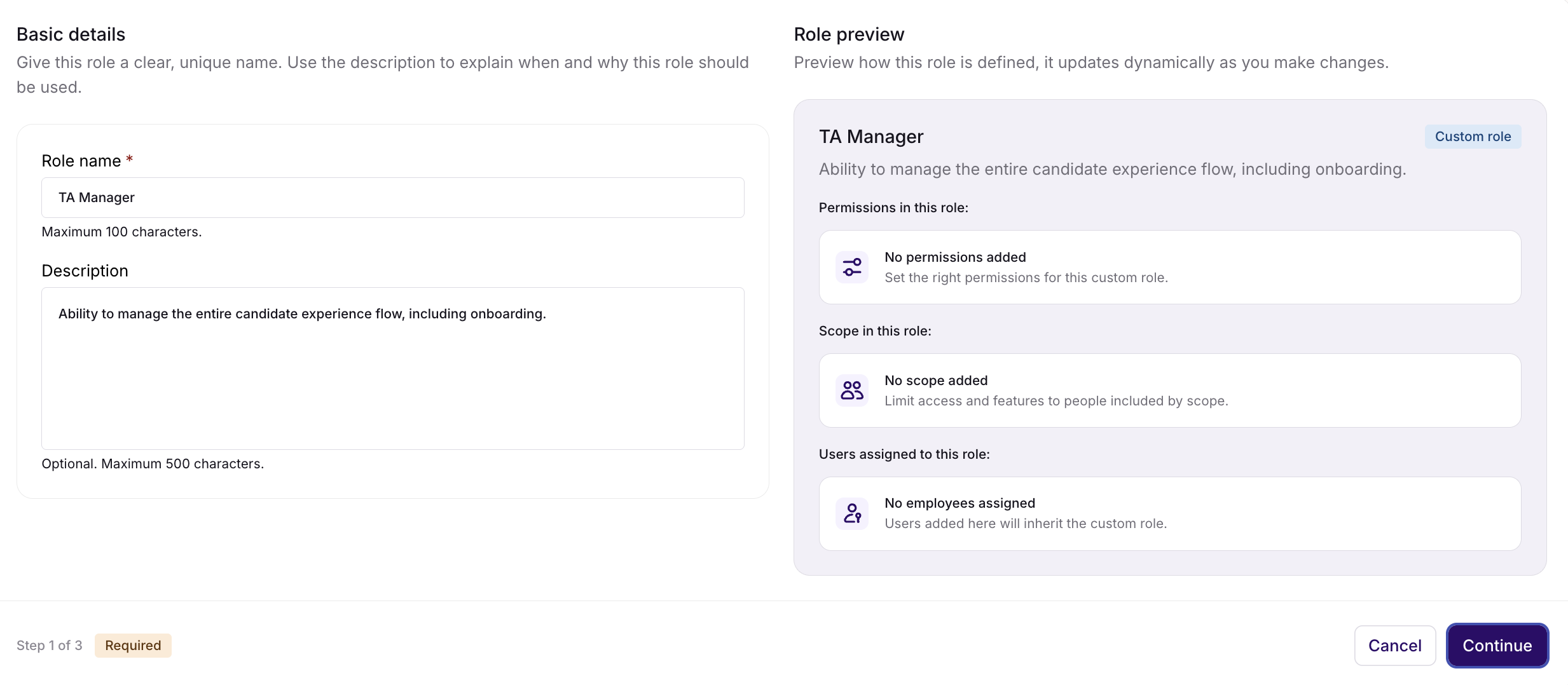 |
| Step 2 | Use the Company-level and Scoped tabs to select one or multiple permissions you want to assign to this role. | 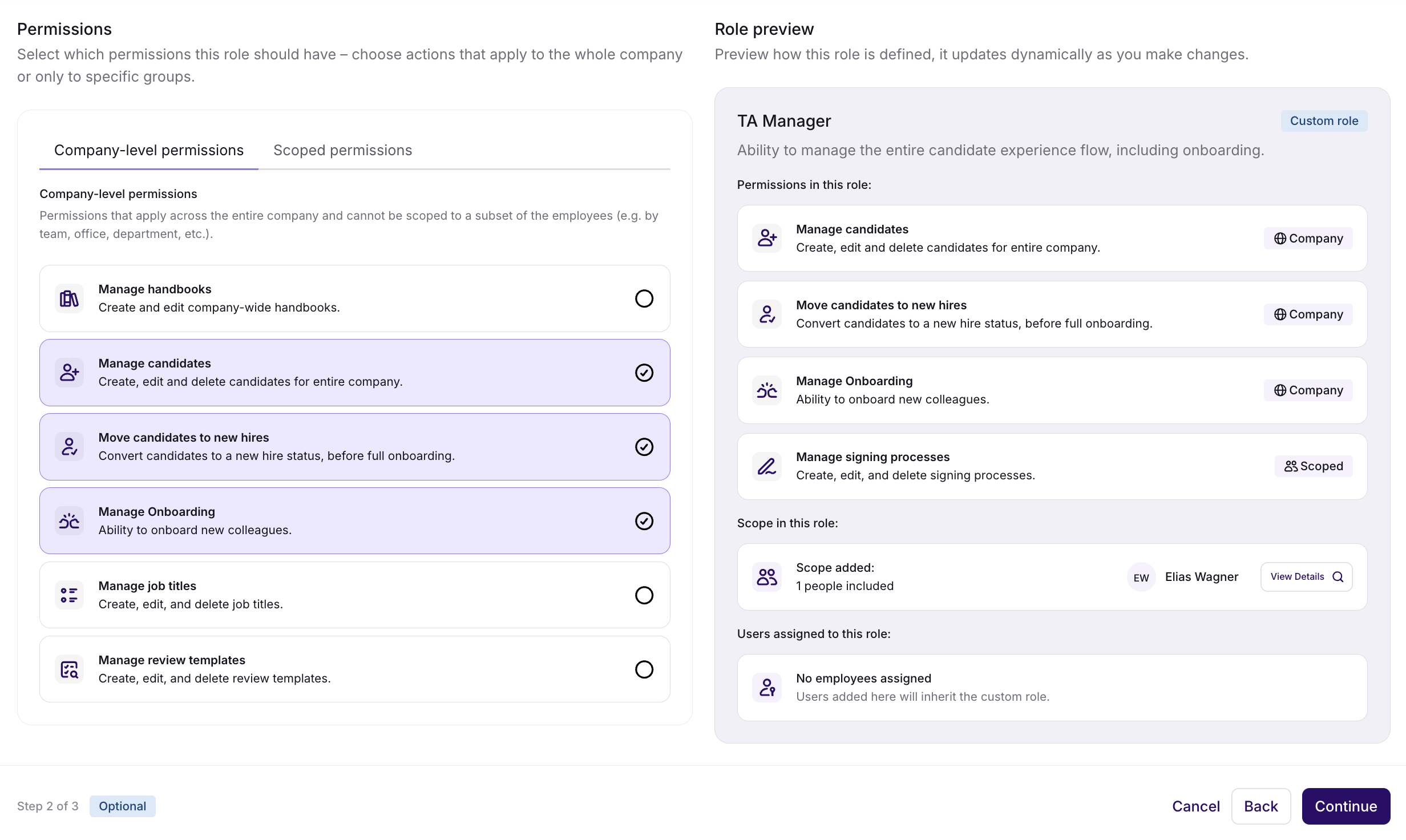 |
| Step 3 | Assign the role to one or several people. Everyone you select will be pinned in the tab to give you a clear overview and fast access later. | 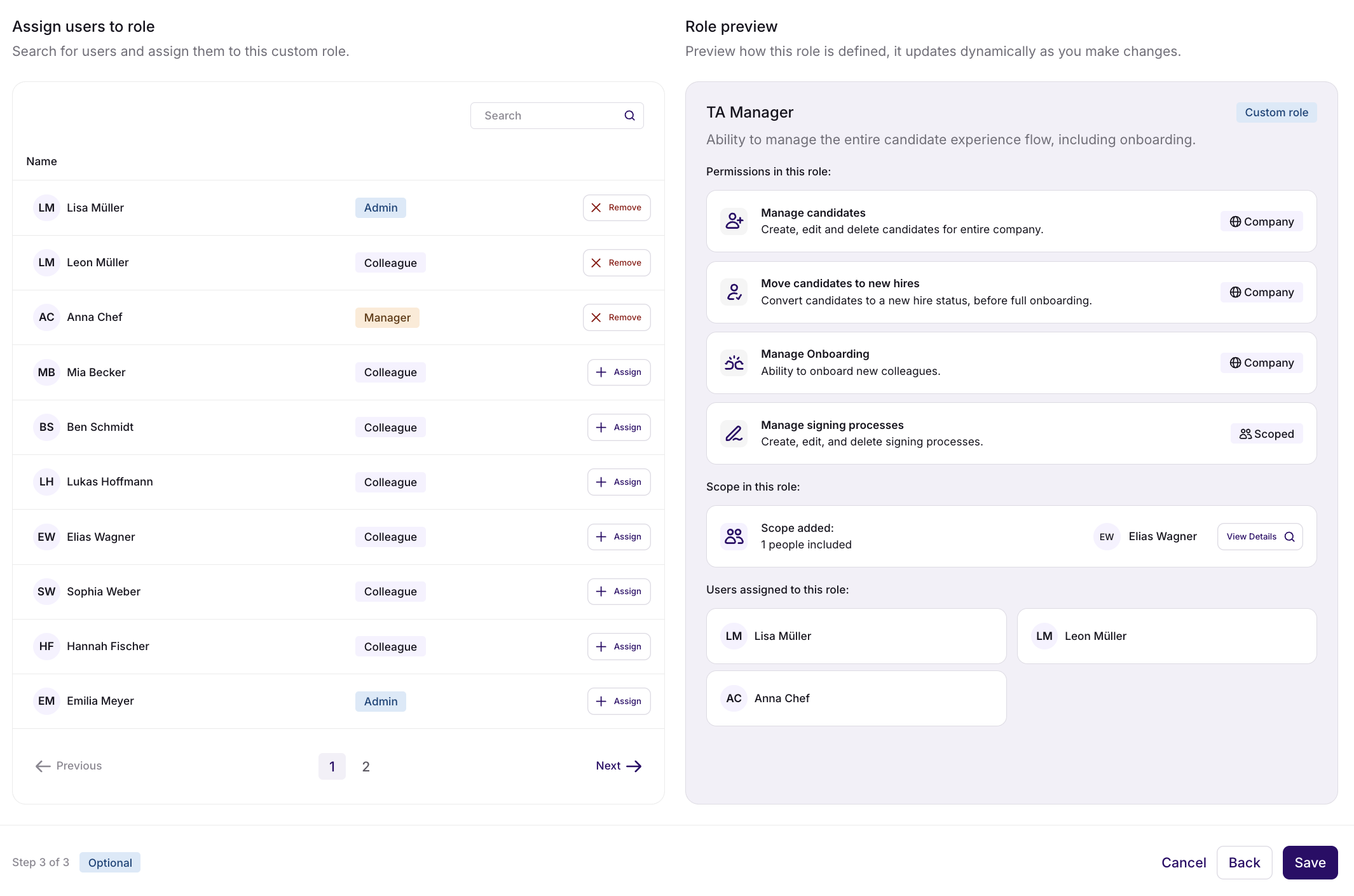 |
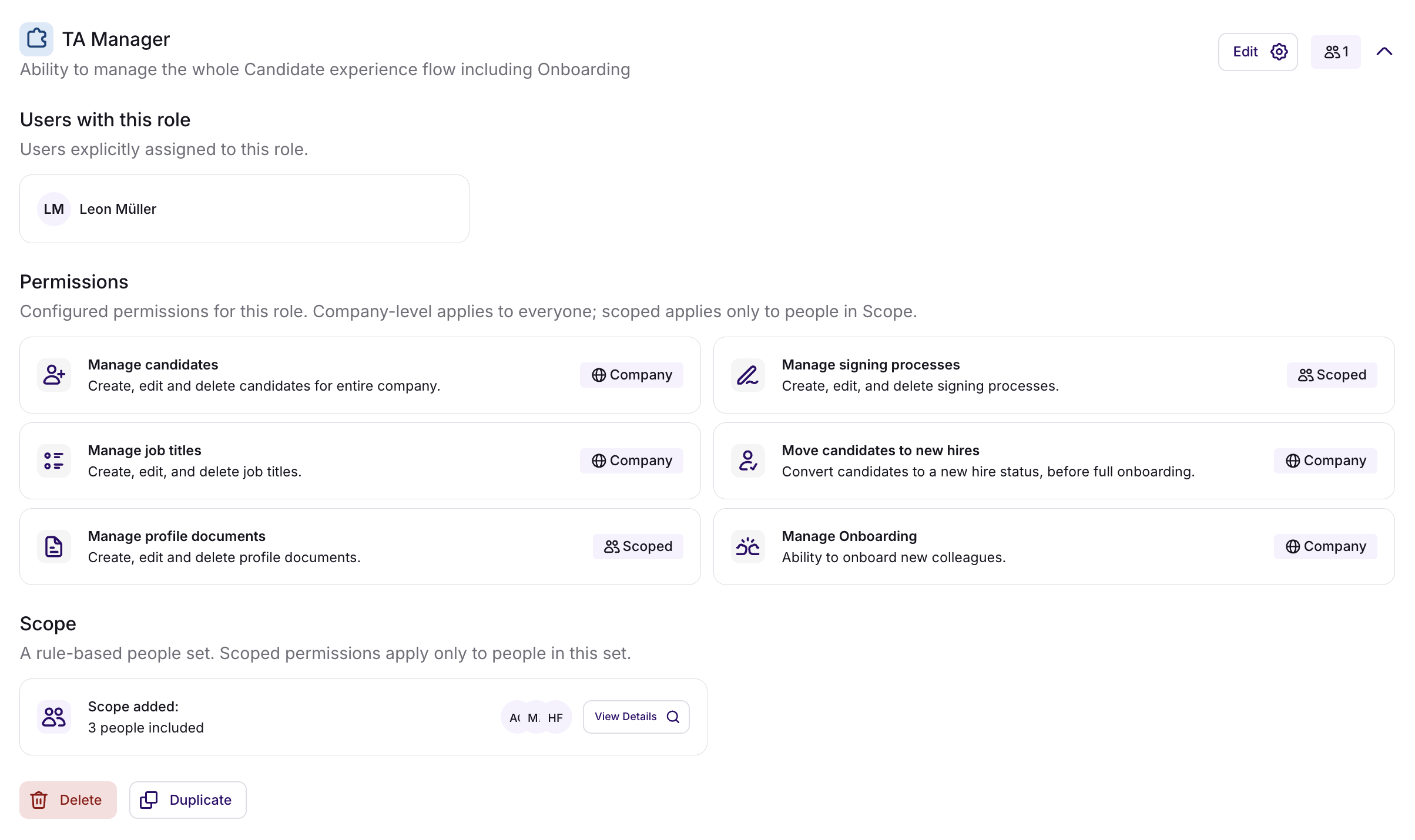
Example: Custom Role for "TA Manager"
The Talent Acquisition Manager typically possesses only standard Member permissions, resulting in restricted access to general employee profiles, company settings, or workflows. However, to empower the TA Manager to recruit and onboard new employees, additional permissions need to be granted. The configuration might resemble the following:
Best Practices for Custom Roles
Review roles regularly: As roles and teams change, permissions may need adjusting.
Create small, focused roles: They make your access model more flexible and secure.
Was this article helpful?
That’s Great!
Thank you for your feedback
Sorry! We couldn't be helpful
Thank you for your feedback
Feedback sent
We appreciate your effort and will try to fix the article