Tripletex Absence Import - Setup & Specifics
Organisations that track absences via Tripletex timesheets can import leave entries into Simployer One's Time Off module. Tripletex remains the master system for absence management: employees request and report their absences in Tripletex, and the import brings the data into Simployer One.
Quick facts
| What is read | Timesheet entries from Tripletex's timesheet module. |
| How codes are mapped | The Simployer leave type code is entered in the Number field of the Tripletex activity. Configured in both systems (see below). |
| Daily hours | Read from the hours on the timesheet entry. 7.5 hours or more = full-day absence; less = partial-day absence. |
| Grouping | Consecutive days with the same leave code are grouped into a single absence period. |
| Export counterpart | The outbound direction (Simployer One to Tripletex) is a separate process. See Tripletex Standard Integration - Absence Data (Export). |
Map Absence Codes
Both systems need matching leave type codes so the import knows which Tripletex timesheet entry corresponds to which Simployer One absence type. This mapping must be configured on both sides: the same code is entered as the Number on the Tripletex activity and as the Leave type code in Simployer One.
In Simployer One
1 | Open Time Off settings Navigate to Settings > Time off settings. |
2 | Add the Leave type code For each absence type that should be imported from Tripletex, add the corresponding Leave type code. This code must match the value configured in Tripletex (see below). 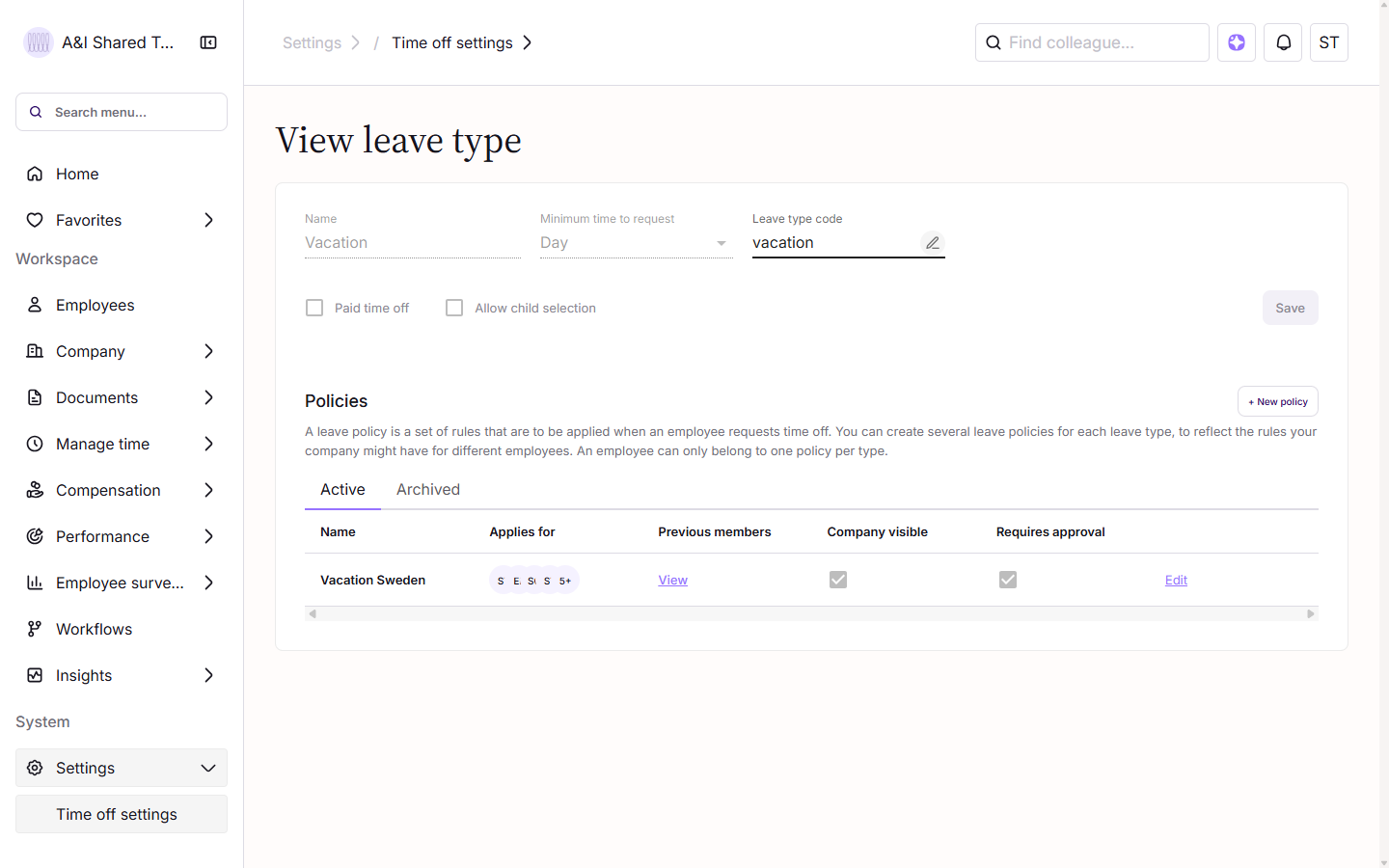 |
In Tripletex
1 | Open Timesheet settings Navigate to Time sheet > Settings. |
2 | Add Simployer codes via the Number field Open the Internal activities section. For each activity that represents an absence (vacation, sick leave, etc.), enter the matching Simployer leave type code in the Number field, and make sure the activity's Absence checkbox is enabled. Activities that represent working time should be left without a Simployer code in Number; they will be ignored during import. 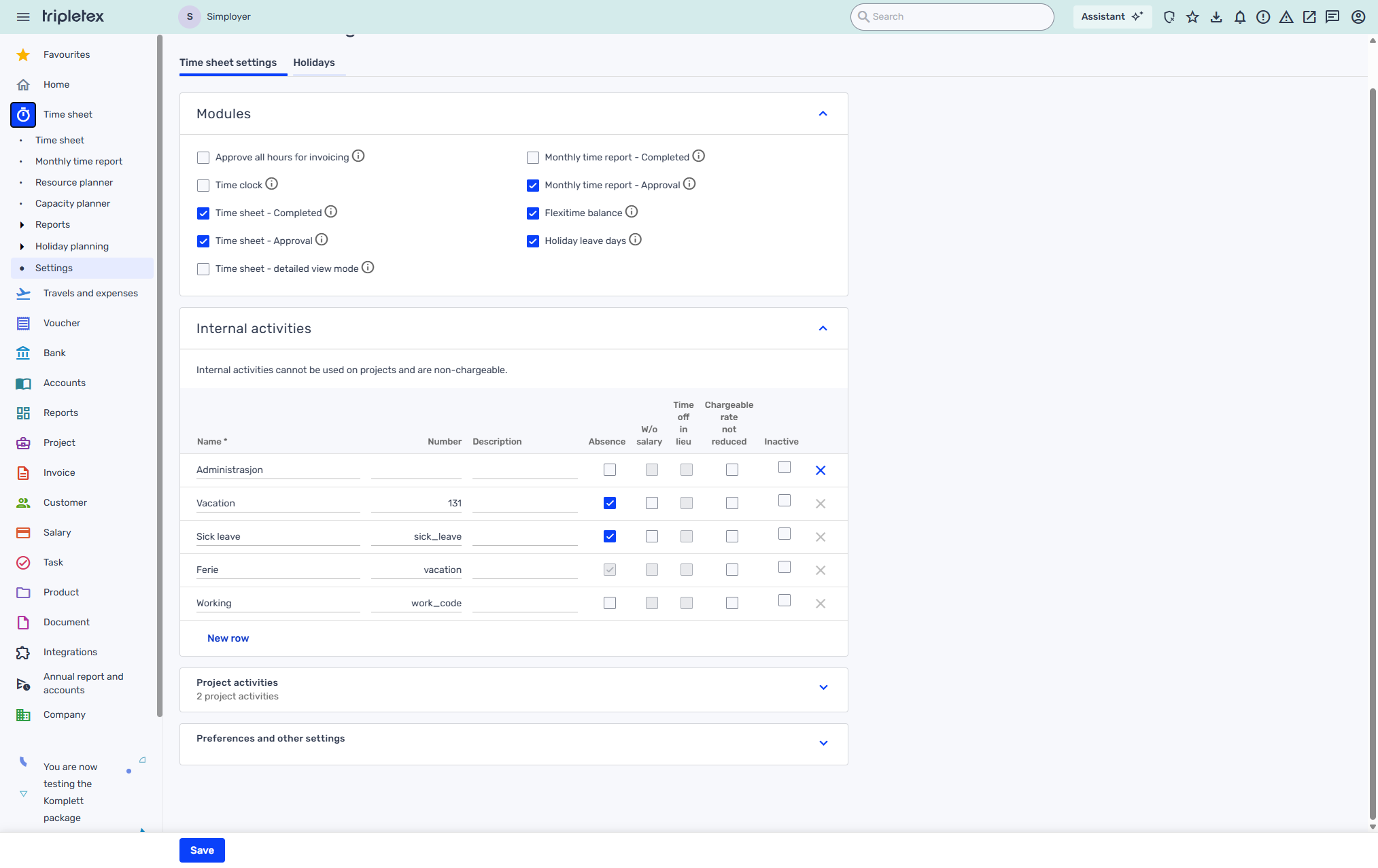 |
Tripletex-Specific Behavior
The typical workflow is to run the import once per month, after the previous month's timesheets are finalized in Tripletex.
Related Articles
Was this article helpful?
That’s Great!
Thank you for your feedback
Sorry! We couldn't be helpful
Thank you for your feedback
Feedback sent
We appreciate your effort and will try to fix the article