Connect Sia to Slack
For owners and admins
Sia can be integrated with Slack to bring HR assistance, updates, and notifications directly into your organization’s workspace. As an Owner or Admin, you can activate the connection in a few steps so employees can interact with Sia in Slack. Once connected, Sia will appear under Apps in Slack and can start responding to prompts.
How to activate Sia for your organization
In Simployer One, go to Settings > Slack > Sia
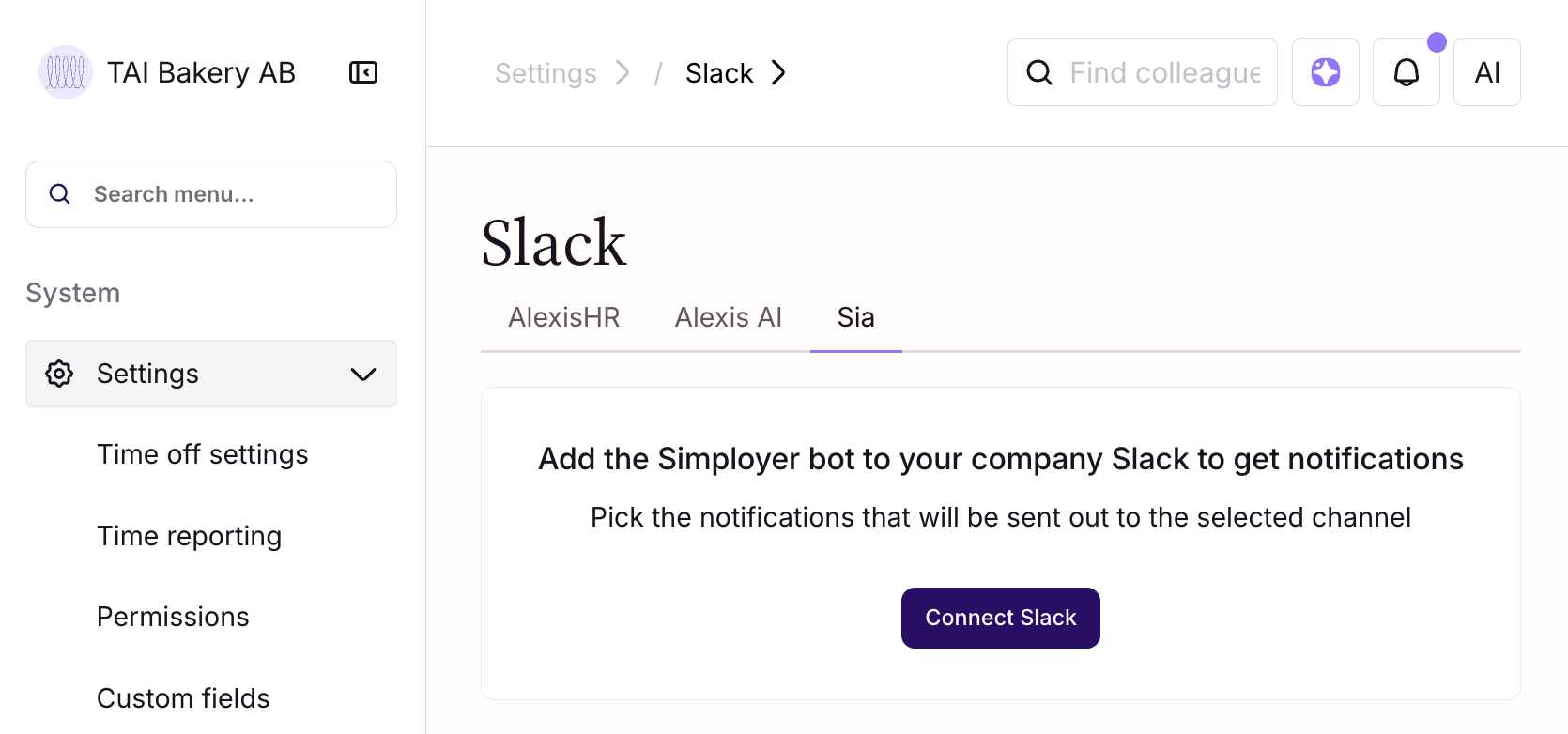
Click Connect Slack. You must be an Owner or Admin in Simployer One to activate the integration
Follow the instructions on the next page and click Allow to authorize Slack
Open Slack and confirm that Sia is listed under Apps
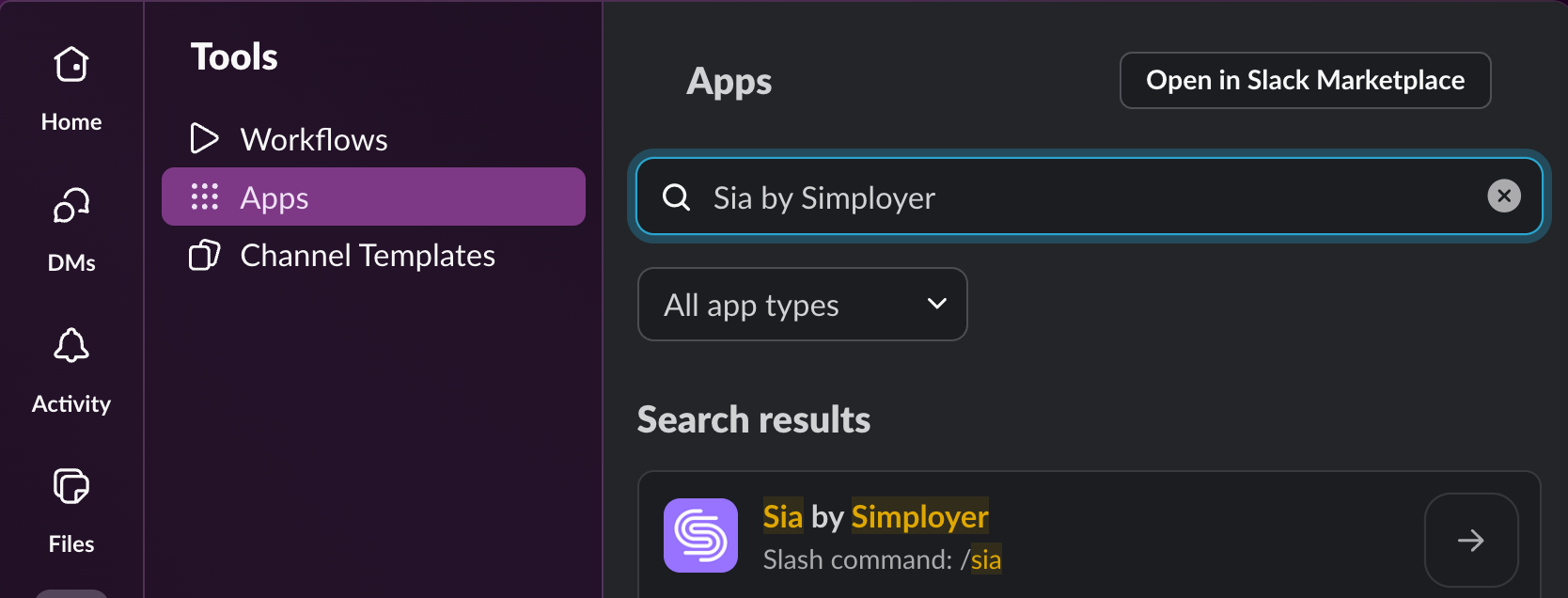
Open "Sia by Simployer" in Slack and send a test prompt such as help
When prompted to log in, click Connect now. This redirects you to your browser to log in to Simployer One and connect the accounts
Return to Slack. Sia is now ready to use.
Note: If you are asked to click Connect now again later, it usually means your Simployer One session expired. Clicking it will re-authenticate you.
Quick start prompts
“help”
“How many vacation days do I have left this year?”
“Show me my vacation balance”
“Register sick leave for today”
Slack channel notifications (optional)
You can configure Sia to post selected notifications to your organization's Slack channels. You can decide:
- Which Slack channels should receive notifications
- Which notification types should be posted there
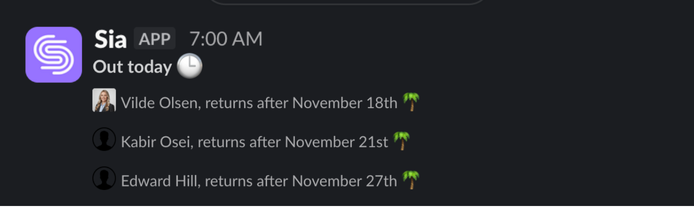
Examples of channel notifications:
- Birthdays
- Work anniversaries
- Remote work status updates
- Who's on leave
Add a notification policy
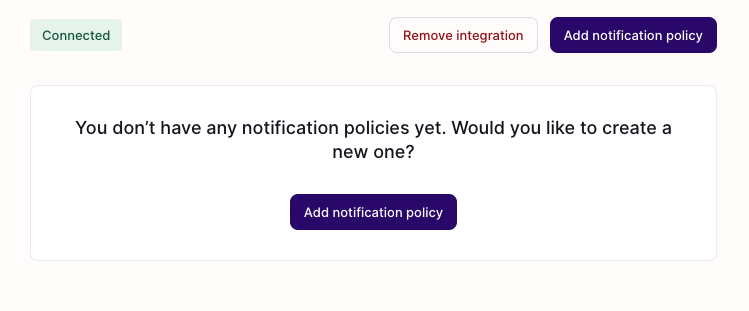
In Simployer One, go to Company > Slack > Sia
Click Add notification policy
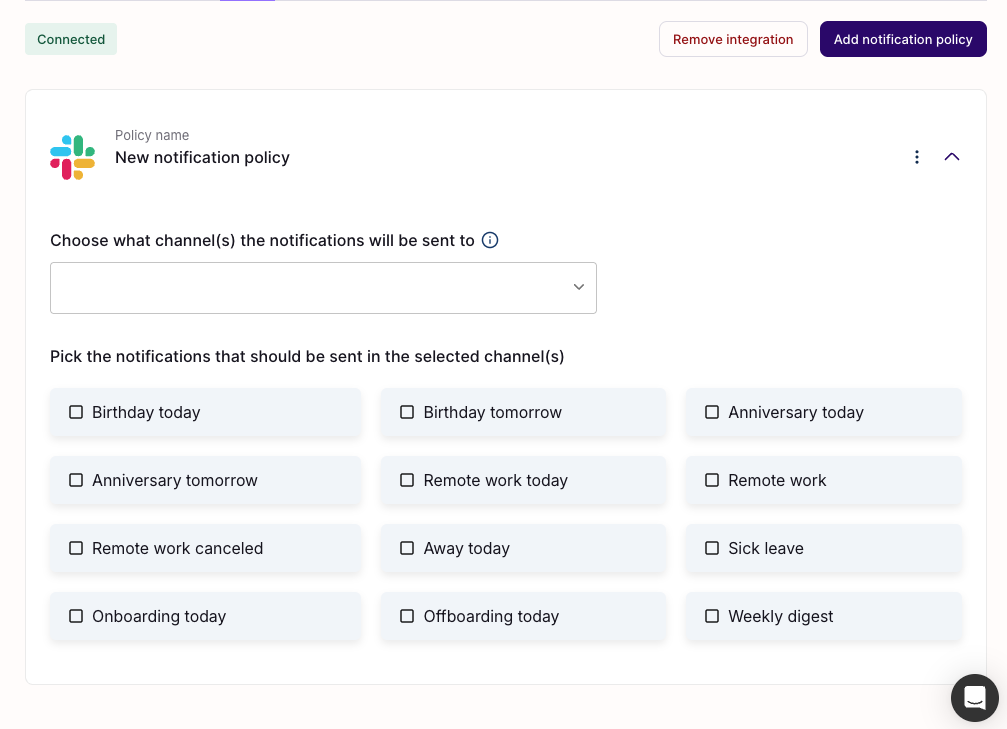
Select the Slack channel(s) that should receive notifications
Select which notification types should be sent to the selected channel(s)
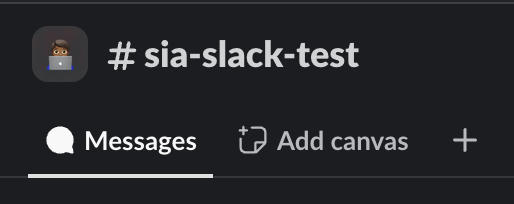
In Slack, navigate to the selected channel(s) and click on the name of the channel to open the settings.
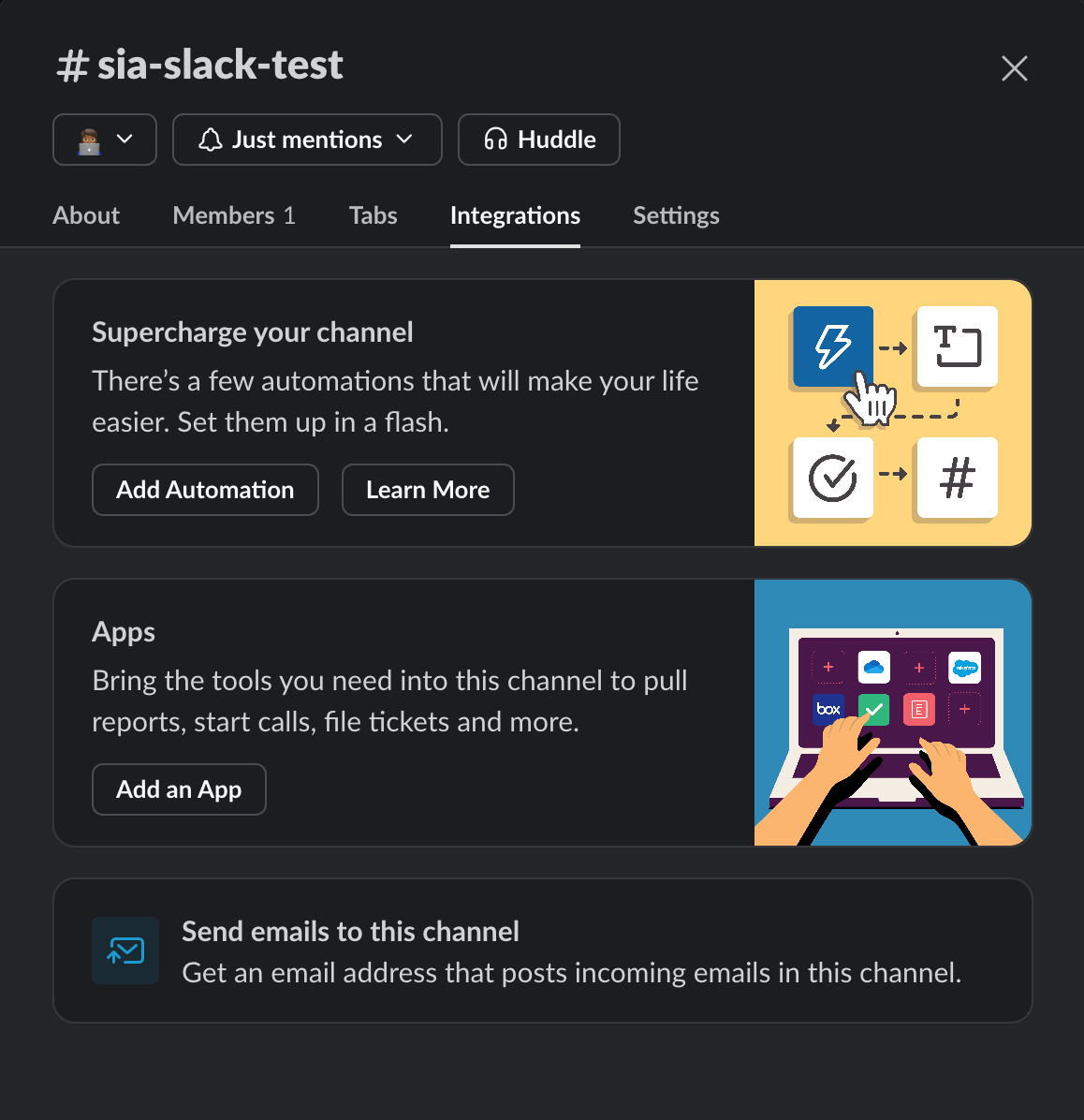
6. Click on Integrations and then click on Add an app
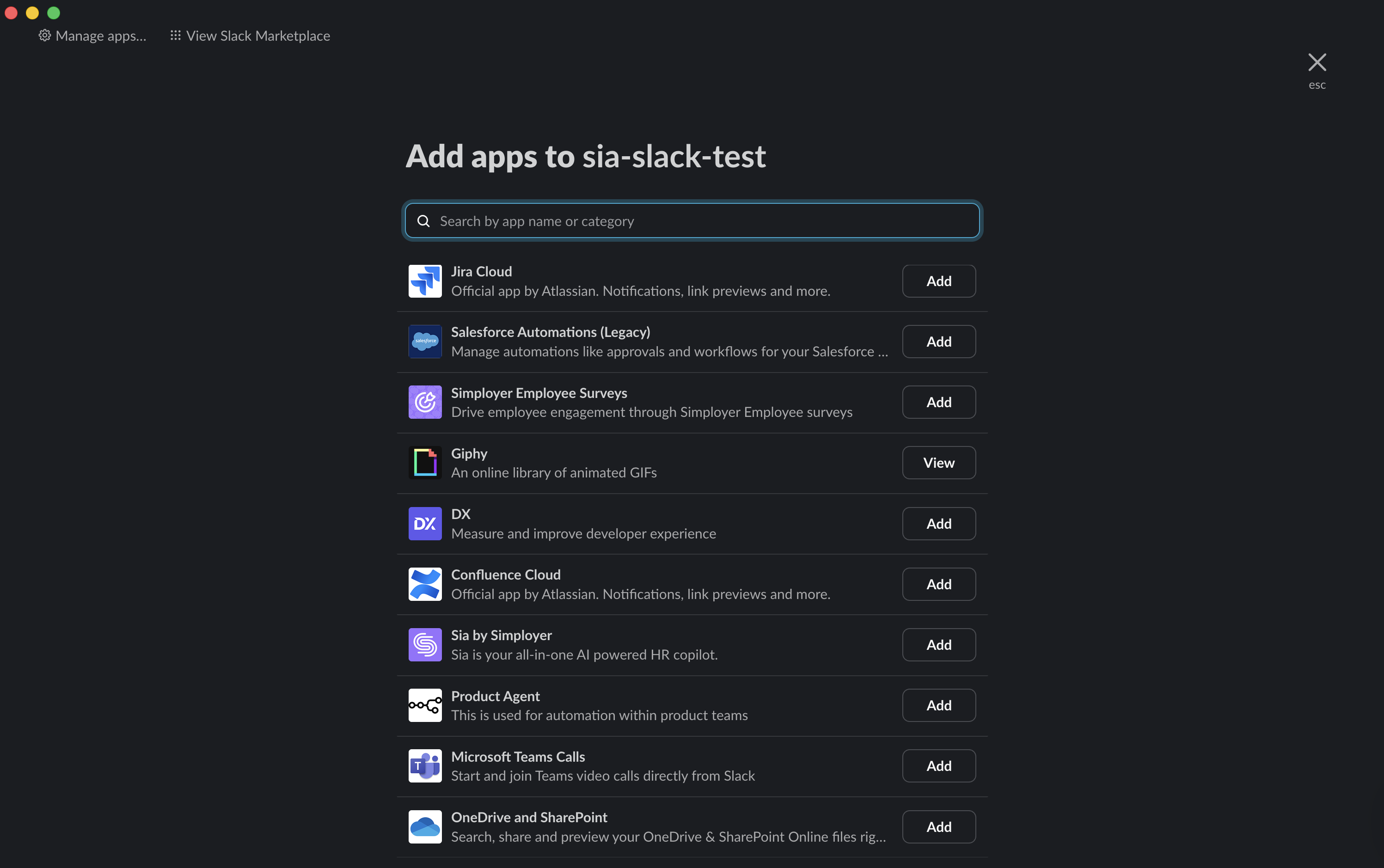
7. Select Sia by Simployer in the list and add it to the channel.
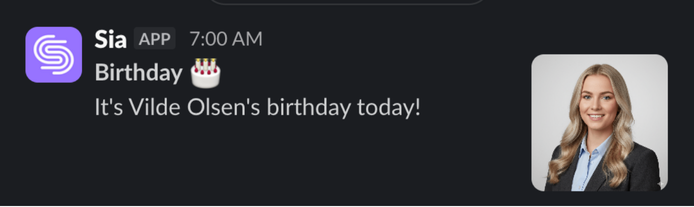
Your channel is now connected and should receive notifications!
Notification timing
Remote work notifications are sent immediately when a user sets their status to working remotely.
Other notifications, such as birthdays, anniversaries, and leaves, are triggered the morning after.
Was this article helpful?
That’s Great!
Thank you for your feedback
Sorry! We couldn't be helpful
Thank you for your feedback
Feedback sent
We appreciate your effort and will try to fix the article