For employees and managers
Once your organization’s Owner or Admin has activated the Slack integration, connecting to Sia is quick. After opening Sia in Slack, you will be prompted to log in and link your Simployer One account. When the connection is complete, you can chat with Sia directly in Slack.
How to connect to Sia in Slack
Note: An Owner or Admin must activate the integration before Sia is available in Slack.
In Slack, go to Tools > Apps and search for Sia by Simployer. If you cannot find Sia, the integration may not be activated for your organization yet
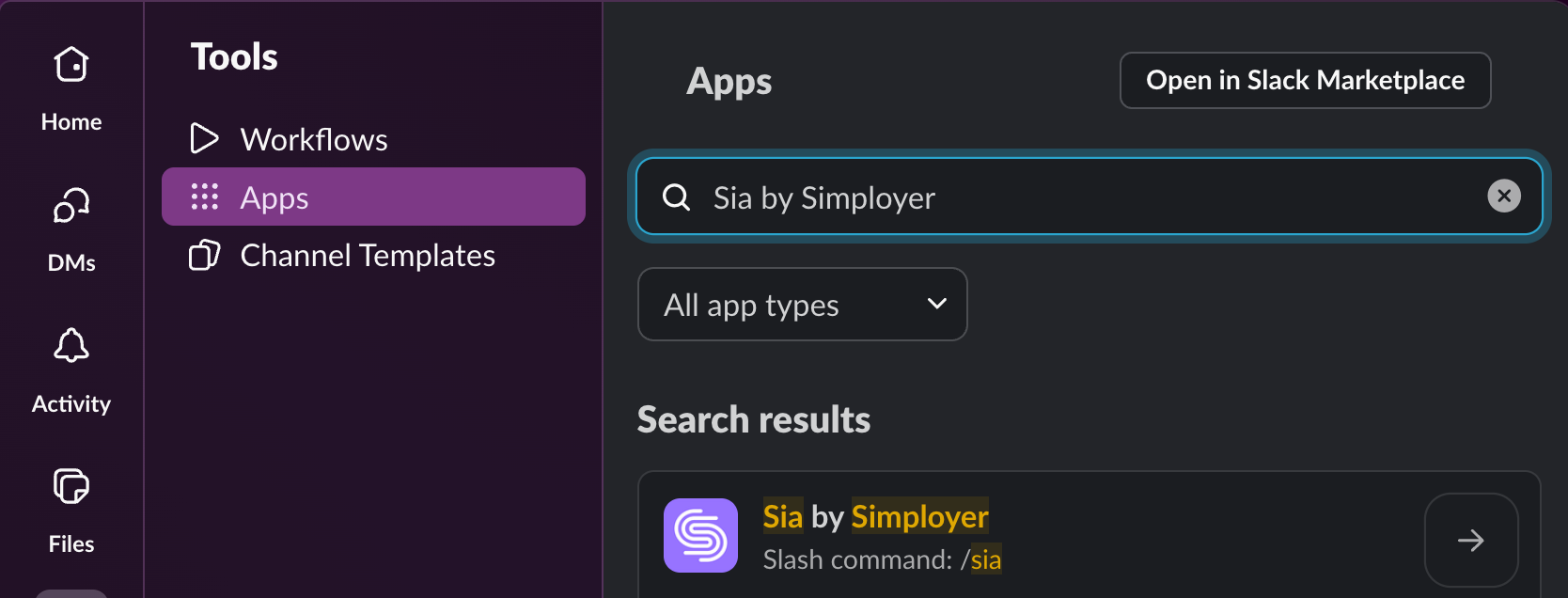
Click Open app
Send a simple prompt, such as help
When prompted to log in, click Connect now. This redirects you to your browser to log in to Simployer One and connect the accounts
Return to Slack. You should now be able to interact with Sia
Quick start prompts
“help”
“How many vacation days do I have left this year”
“Show me my vacation balance”
“Register sick leave for today”
Receive and act on notifications
Notifications show up when something needs attention, so work happens at the right moment without switching tools.
Managers
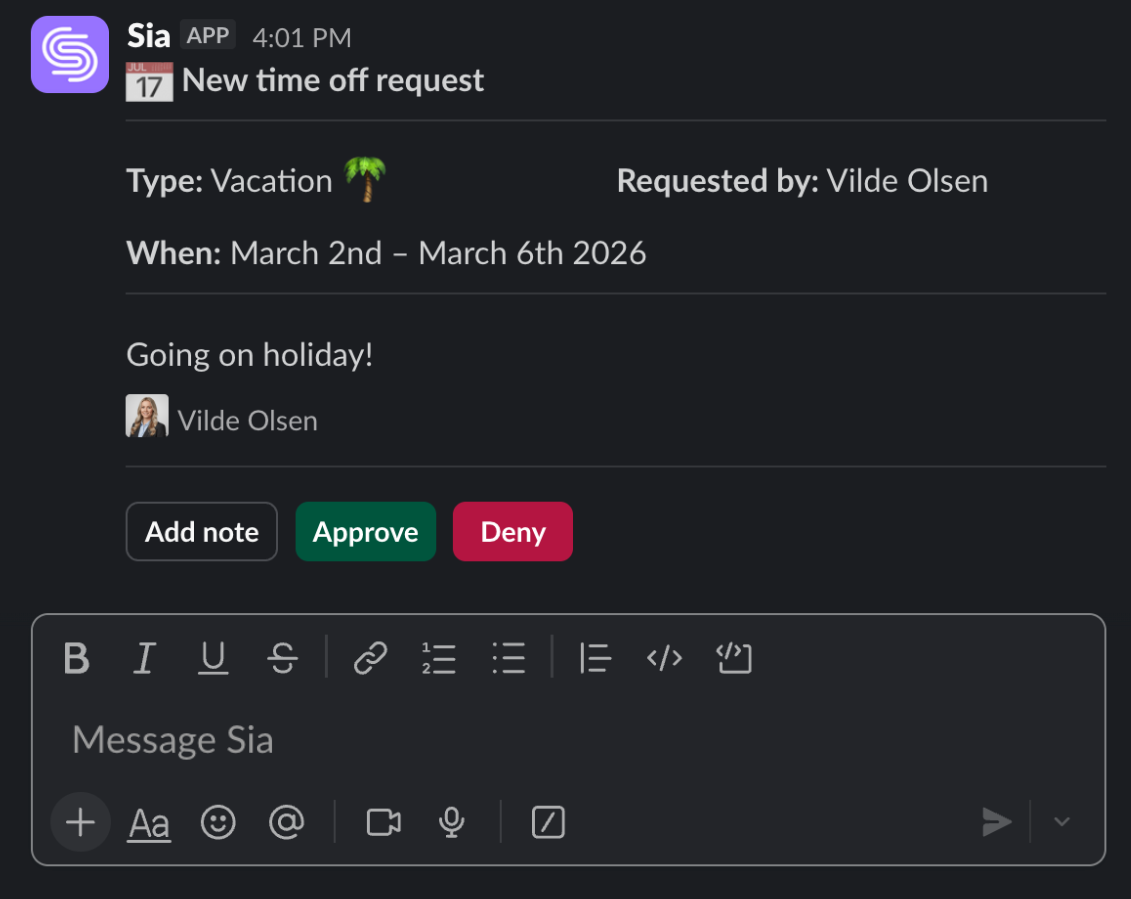
If an employee submits a leave request, Sia can notify you right away in Slack. You can approve or deny the request directly in the message.
Employees
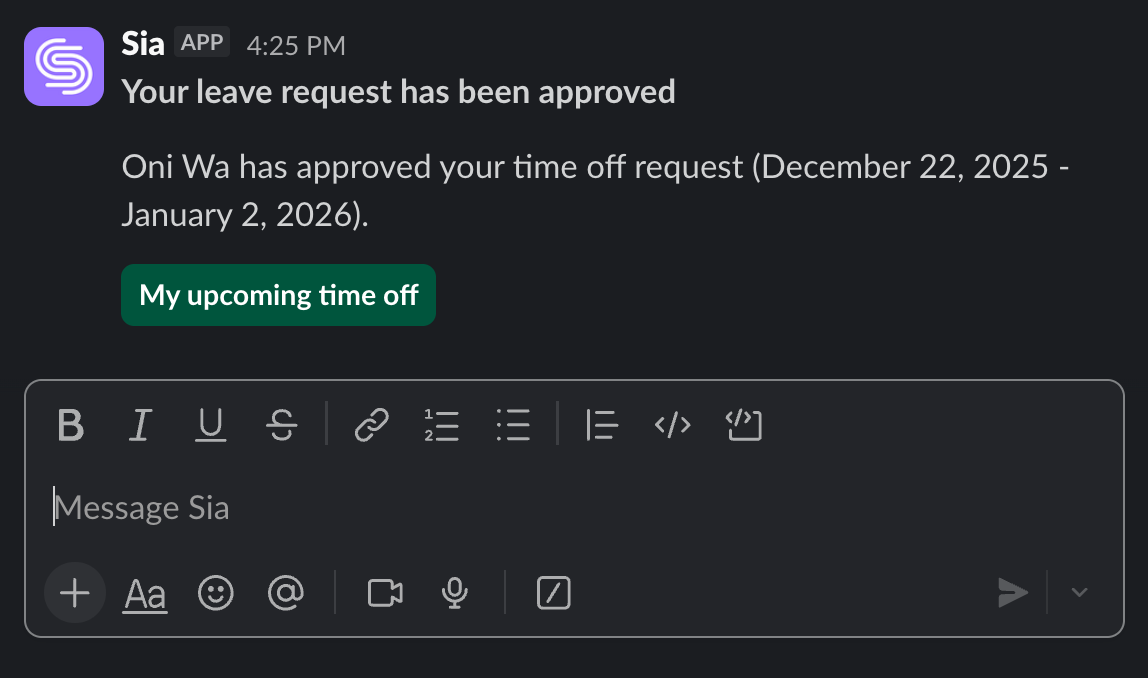
When a manager takes action, such as approving your vacation request, you will be notified in chat.
Examples of notifications
- “New time off request”
- “Your leave request has been approved.”
- “A new review cycle has been launched.”
Was this article helpful?
That’s Great!
Thank you for your feedback
Sorry! We couldn't be helpful
Thank you for your feedback
Feedback sent
We appreciate your effort and will try to fix the article