Connect Simployer One to NAV to import sick leave records automatically and display sick note information.
What do you need before setting up the NAV integration in Simployer One?
Before you set up the NAV integration in Simployer One:
Create a sick leave policy
Add the relevant employees to the scope of the sick leave policy
Use the built-in sick leave type in Simployer One
Register each employee’s Social Security number (SSN) on their employee profile
Have the company’s organization number available
Make sure the company’s CEO is available to authenticate with BankID
Important: The NAV integration cannot retrieve sick leave records for an employee who is not covered by the sick leave policy or does not have an SSN registered.
How do you connect a company to the NAV integration in Simployer One?
To connect a company to the NAV integration:
Go to Settings > Integrations in Simployer One.
Find the NAV Integration section.
Click Integrate.
Enter the company’s Organization number.
Continue to Altinn to complete the authorization.

Watch the video showing how to set up the NAV integration
How does the CEO authorize the NAV integration in Altinn?
The person who starts the setup in Simployer One does not need to be the company’s CEO. However, the CEO must complete the authorization in Altinn.
The CEO must:
Authenticate in Altinn using BankID.
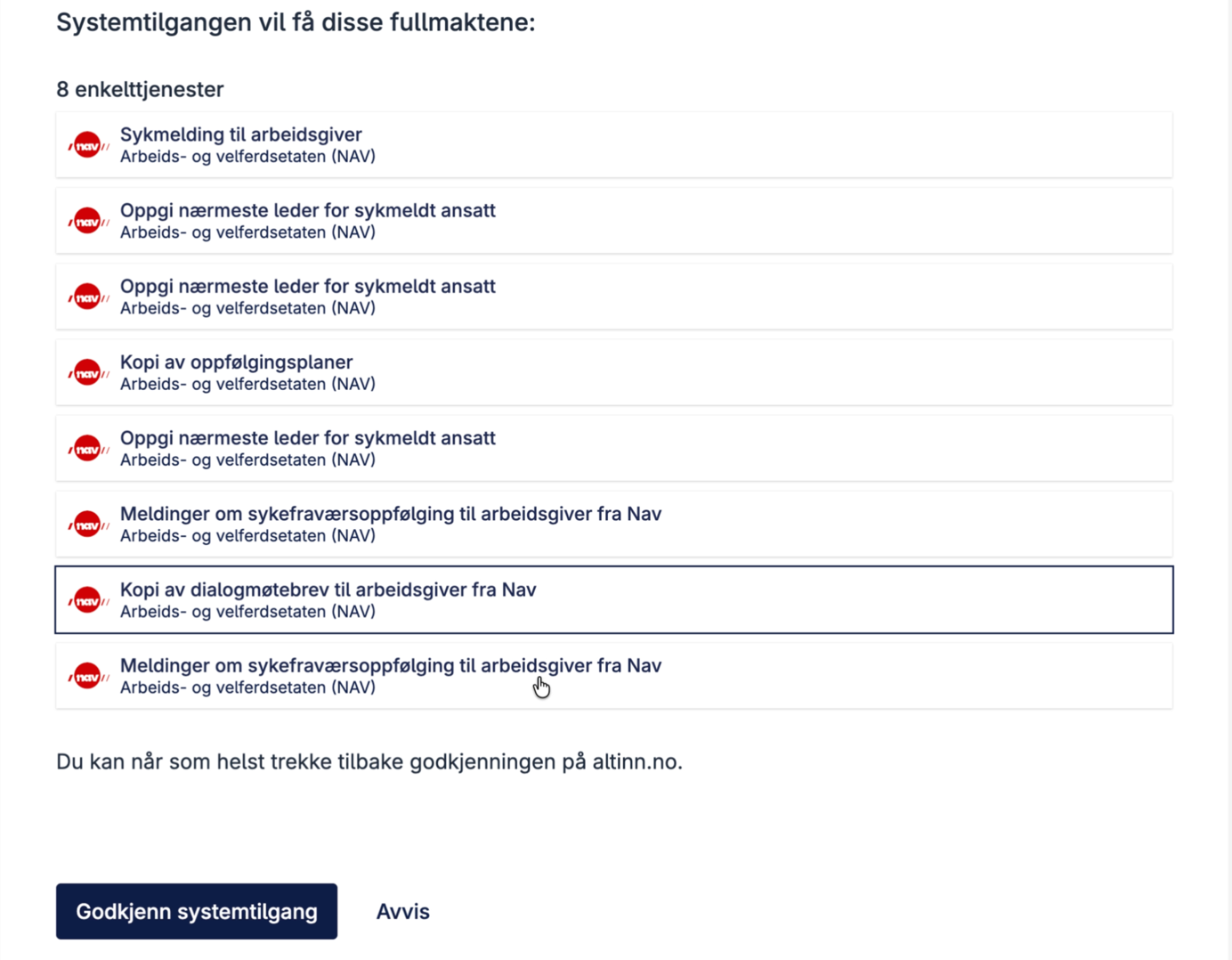
Grant Simployer permission to access and process the company’s sick leave data from NAV.
Return to Simployer One after granting access.
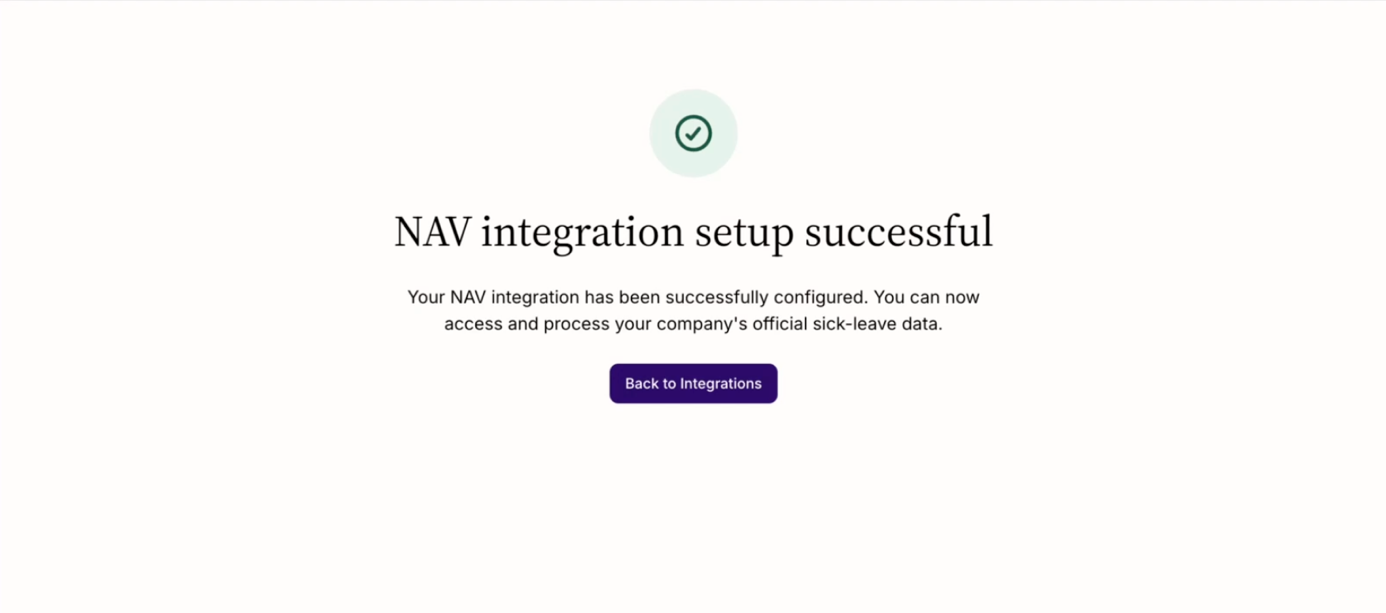
After authorization, Simployer One displays a message confirming whether the setup was successful. If the authorization succeeds, the NAV integration is active immediately. No additional technical setup is required.
What information does the NAV integration import into Simployer One?
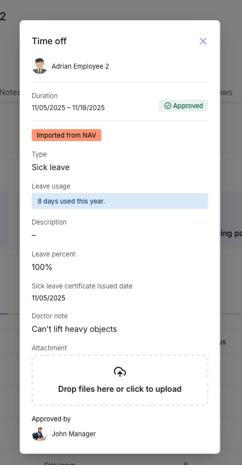
The NAV integration automatically imports sick leave records from NAV into Simployer One. Each imported sick leave record includes relevant information from the sick note, such as:
Duration
Sick leave grade or percentage
Issue date
Medical information from the sick note
The NAV and Altinn API version 3 does not provide a document file. Simployer One displays the available sick note information directly in the leave dialogue.
How does Simployer One handle sick leave imported from NAV?
Sick leave imported through the NAV integration:
Is approved automatically
Cannot be edited manually
Is identified as imported from NAV
Triggers an email notification to the employee’s manager
Starts the sick leave follow-up process when sick leave follow-up is configured under workflows
Applies the same handling for the Norwegian Holiday Act and overlapping leave as manually registered sick leave
How do you connect multiple companies to the NAV integration?
You can connect multiple company organization numbers to the same Simployer One account.
Repeat the NAV integration setup and Altinn authorization for each company. The integration dialogue displays a list of the companies that are already connected.
Frequently asked questions about the NAV integration
Who can access sick leave data imported through the NAV integration?
Sick leave data imported from NAV follows the same permission rules as other leave records in Simployer One:
Employee: Can see their own leave records
Manager: Can see leave records for their direct reports, including descriptions
Admin: Can see leave records across the company
Owner: Has full access to all data
Approver: Can see the specific leave records they are assigned to approve
Can you download a sick note document imported through the NAV integration?
No. The NAV and Altinn API version 3 does not provide a sick note document for Simployer One to download.
Simployer One displays the available information directly in the leave dialogue, including the duration, sick leave percentage, issue date, and doctor’s note information.
Was this article helpful?
That’s Great!
Thank you for your feedback
Sorry! We couldn't be helpful
Thank you for your feedback
Feedback sent
We appreciate your effort and will try to fix the article