Time Off Overview gives HR managers and admins a single page to see who's away, plan around absence, and check vacation balances across the whole company, without running separate reports per department.
Admin overview
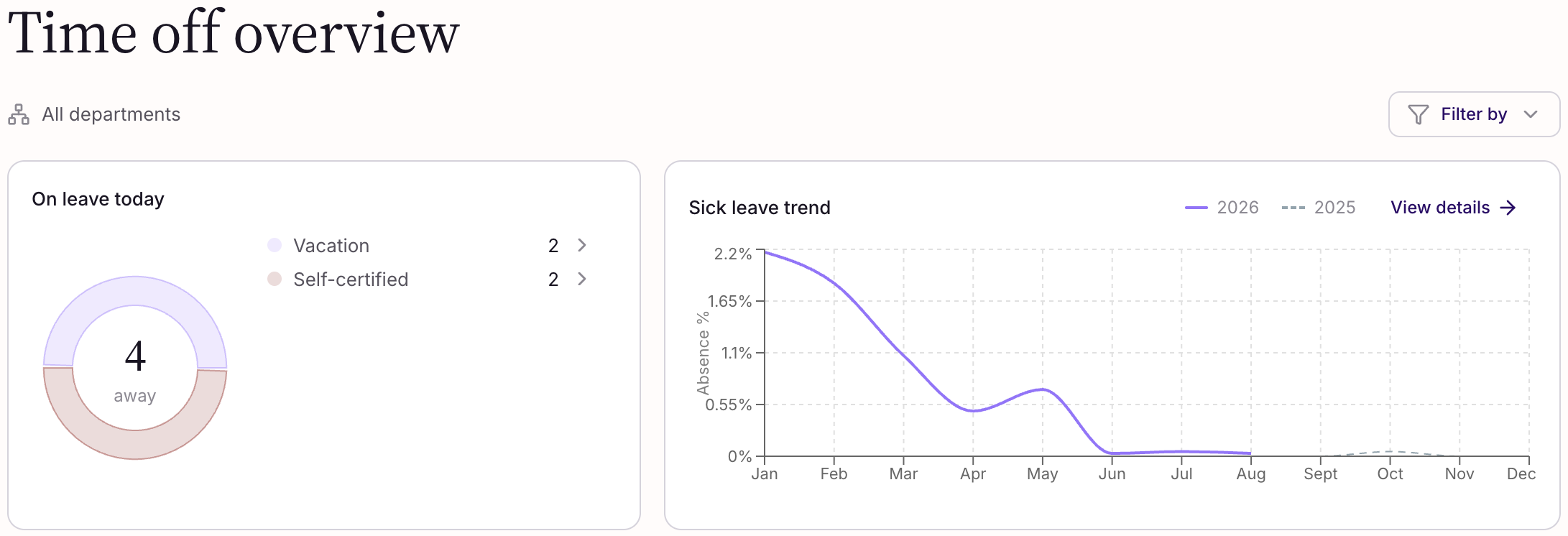
At the top of the page, two cards give you an instant read on company-wide absence.
- On leave today shows how many people are away right now, broken down by leave type. Click a slice or a row to see exactly who's away, their role, dates, and approval status.
- Sick leave trend compares this year's sick leave rate to last year's, month by month. Click "View details" for a bigger chart, a breakdown by self-certified vs. certified sick leave, and a written summary of the trend.
Both cards, and everything else on the page, follow the Filter by control at the top. Filter by department, office, or team, or switch to filtering by named employees instead: everything on the page updates together.
Leave schedule
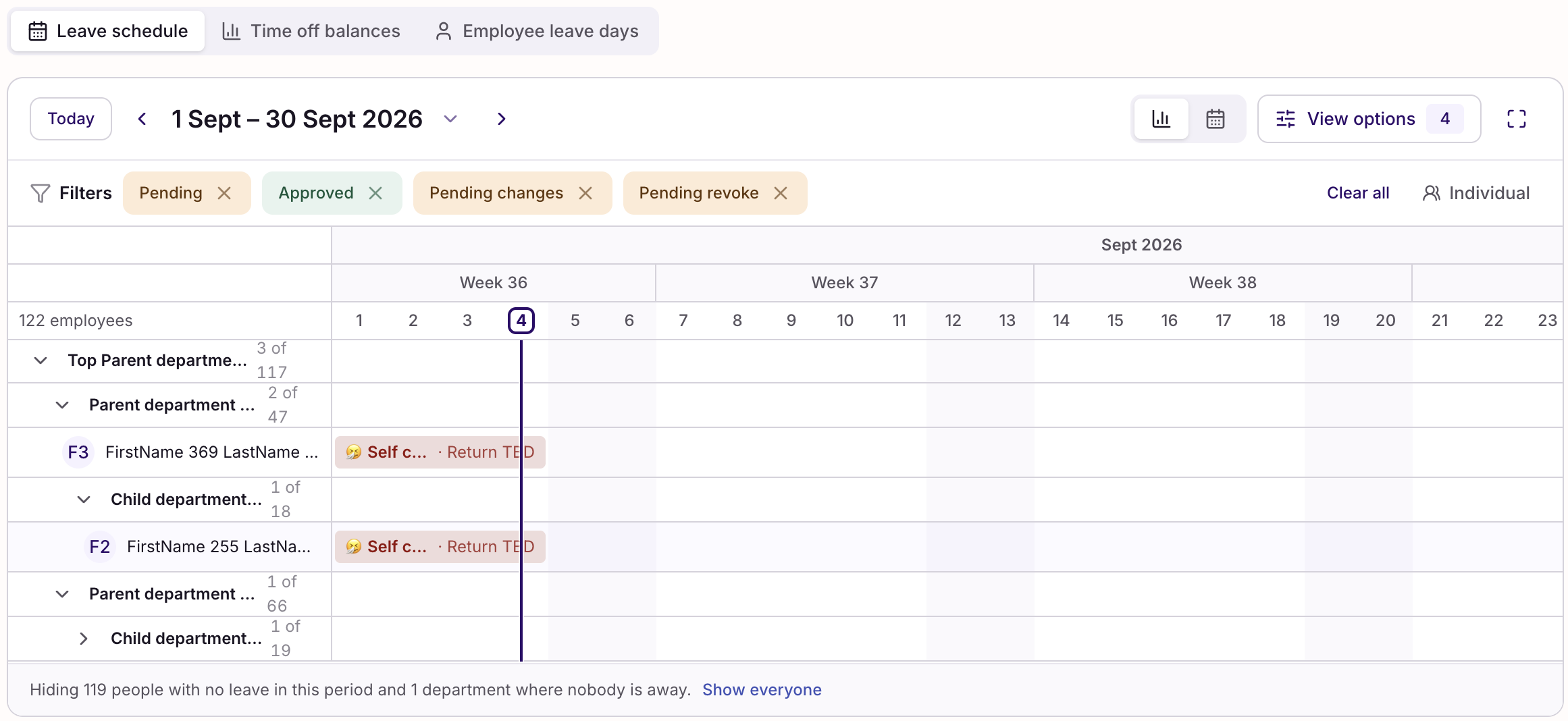
Switch to “Leave schedule” to see absence laid out over time.
- Grouped view shows each department as a row, with each day colored by how much of that group is away, so you can spot which teams are stretched thin at a glance.
- Individual view shows each person as their own row, with a bar for every absence.
- Use the Leave type and Status filters to narrow what's shown: hiding a leave type removes those people from the away counts too.
- Toggle to Calendar view for a month-by-month grid instead of a timeline.
- Click the expand icon for a fullscreen view when you're planning week by week.
Time off balances
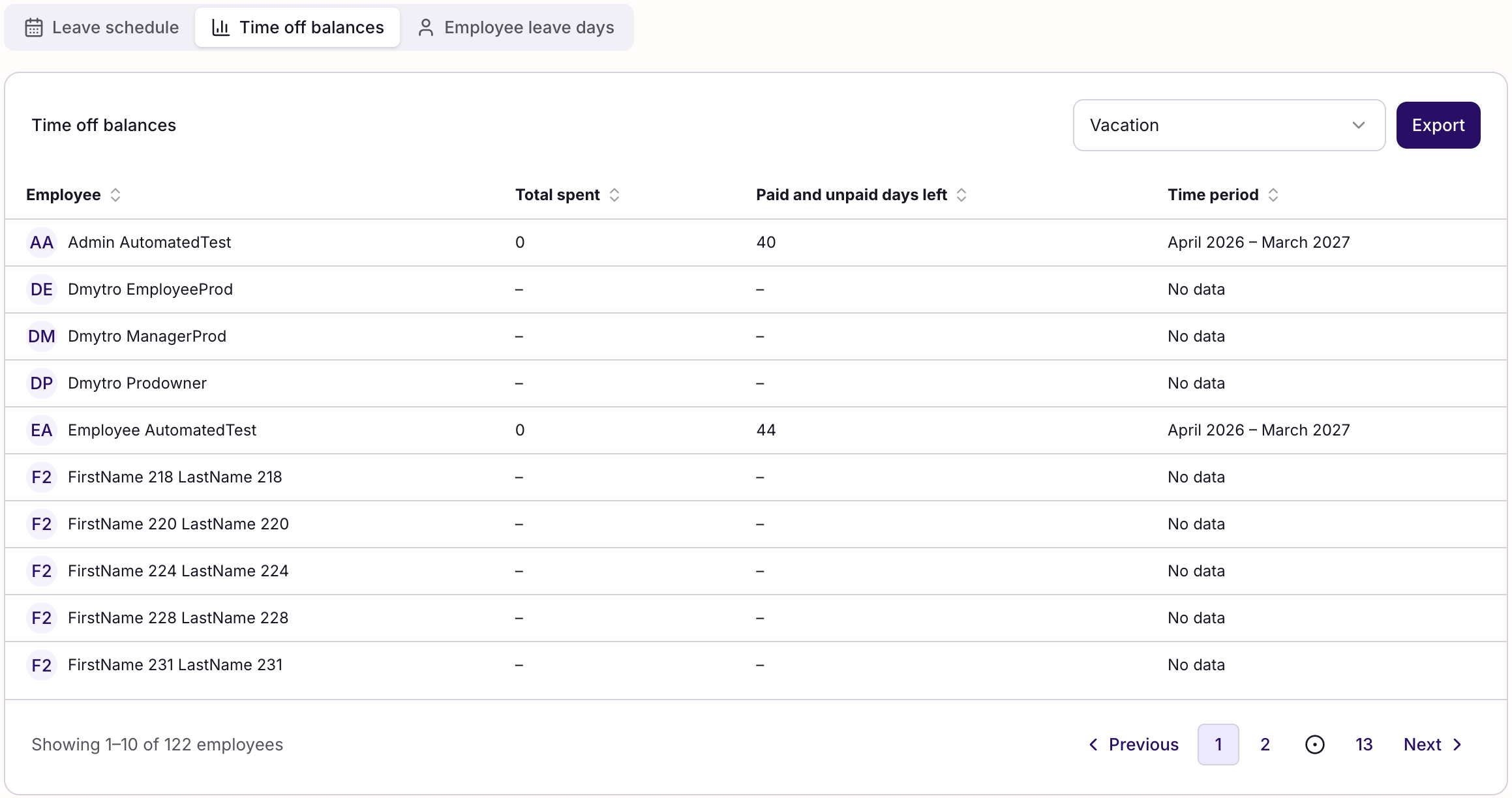
The “Time off balances” tab gives you a table: one row per employee, for whichever leave type you pick from the dropdown (Vacation, Self-certified sick leave, or any custom type your company uses). Sort any column, page through results, and hit Export to download the whole group's balances as an Excel file.
Pending requests tab (HR)
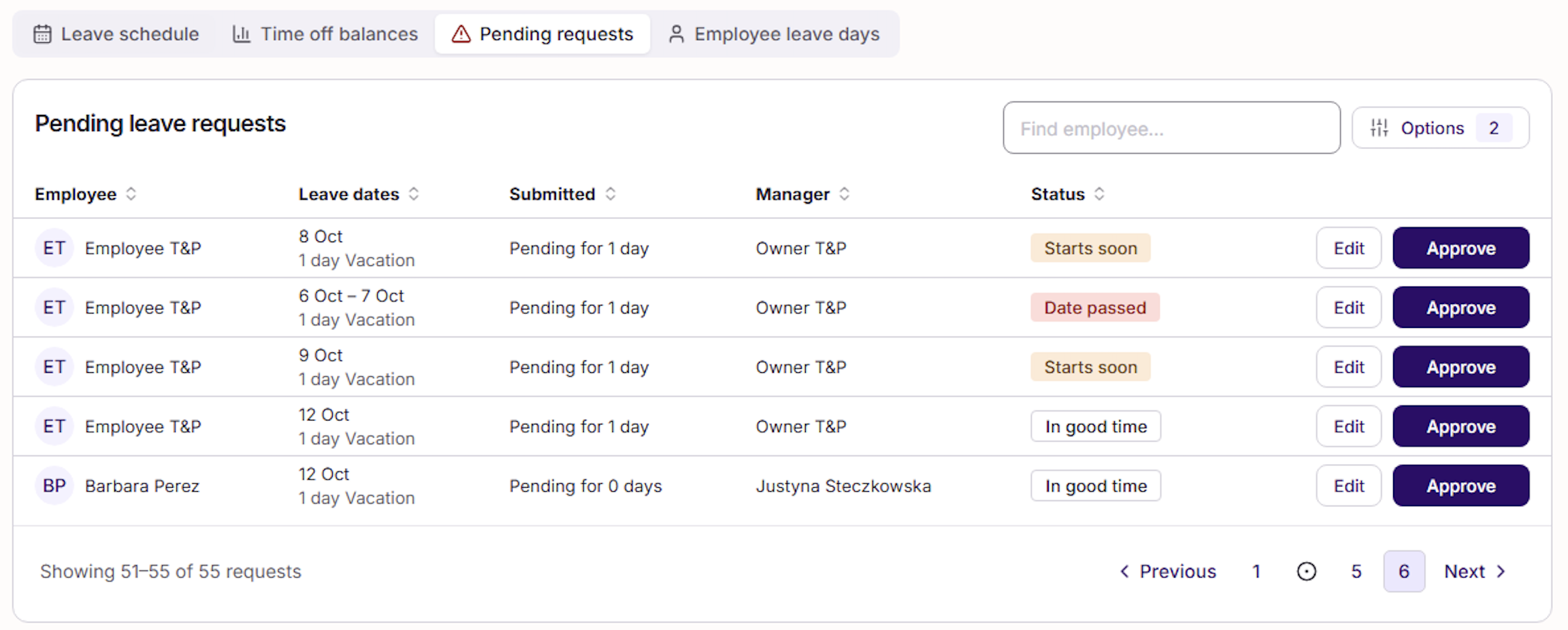
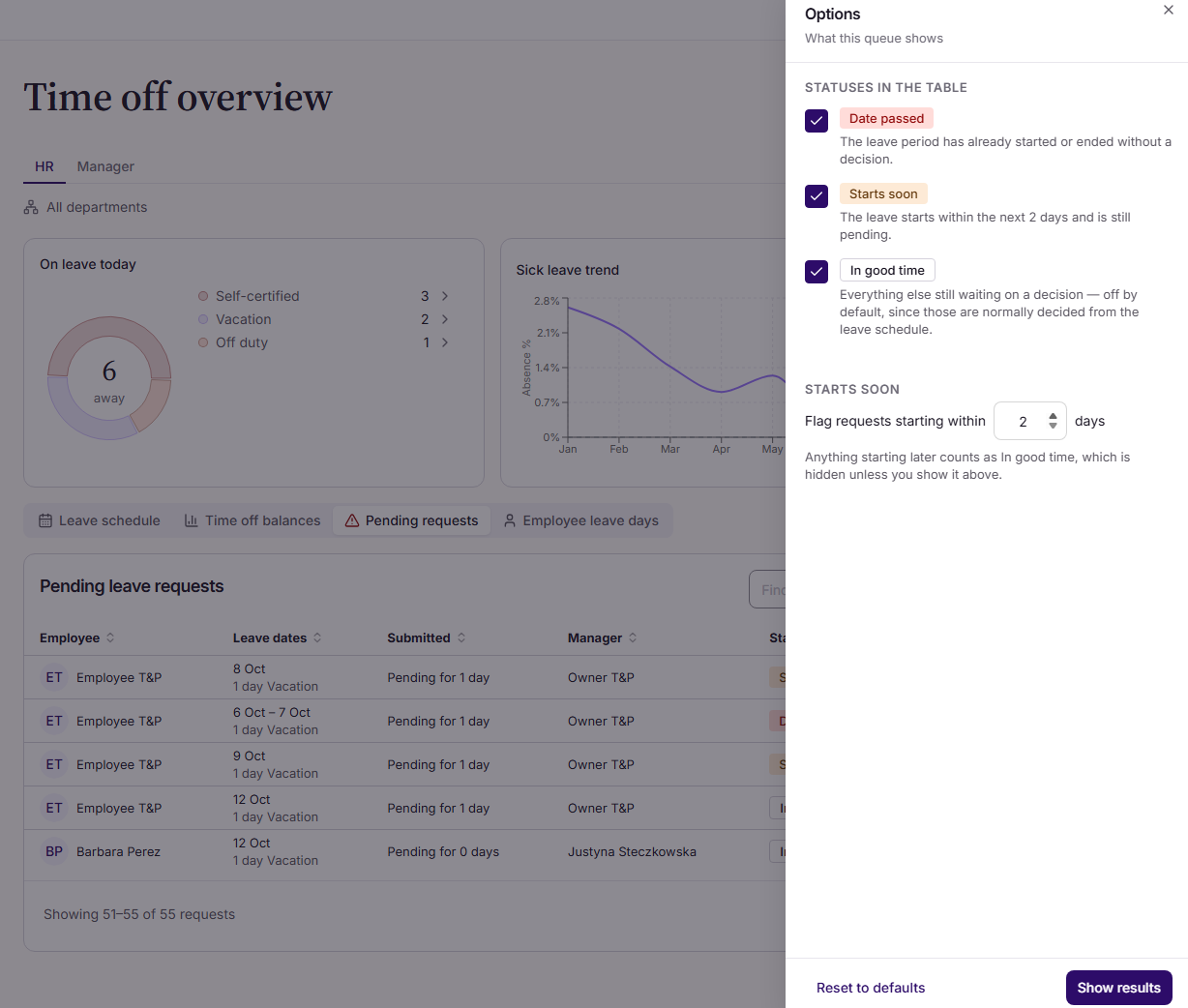
On the HR tab of the Time off overview, the Pending requests tab lets you review and decide on time off requests without leaving the page. The tab shows a red exclamation mark when any leave in your selected scope has the Date passed status. For each request you can see the employee, the leave dates, type and length, how long it has been waiting, the responsible manager and a status badge. Select Approve to approve it straight from the list, or Edit to change, revoke or approve it. Use Filter by at the top of the page to set the scope to a department, an office or named employees, and the search field to find an employee.
By default the tab shows Date passed and Starts soon, so the most urgent requests come first. Open Options to choose which statuses are shown. Your settings are remembered the next time you open the tab in the same browser.
Managers do not see this tab. They approve requests from the Manager tab.
The statuses
- Date passed: the leave period has already started or ended without a decision.
- Starts soon: the leave starts within the next 7 days and is still pending. You can change the number of days in Options.
- In good time: everything else still waiting on a decision. These are hidden by default, because they are normally decided from the leave schedule. Switch them on in Options to see the whole pending list.
Employee leave days
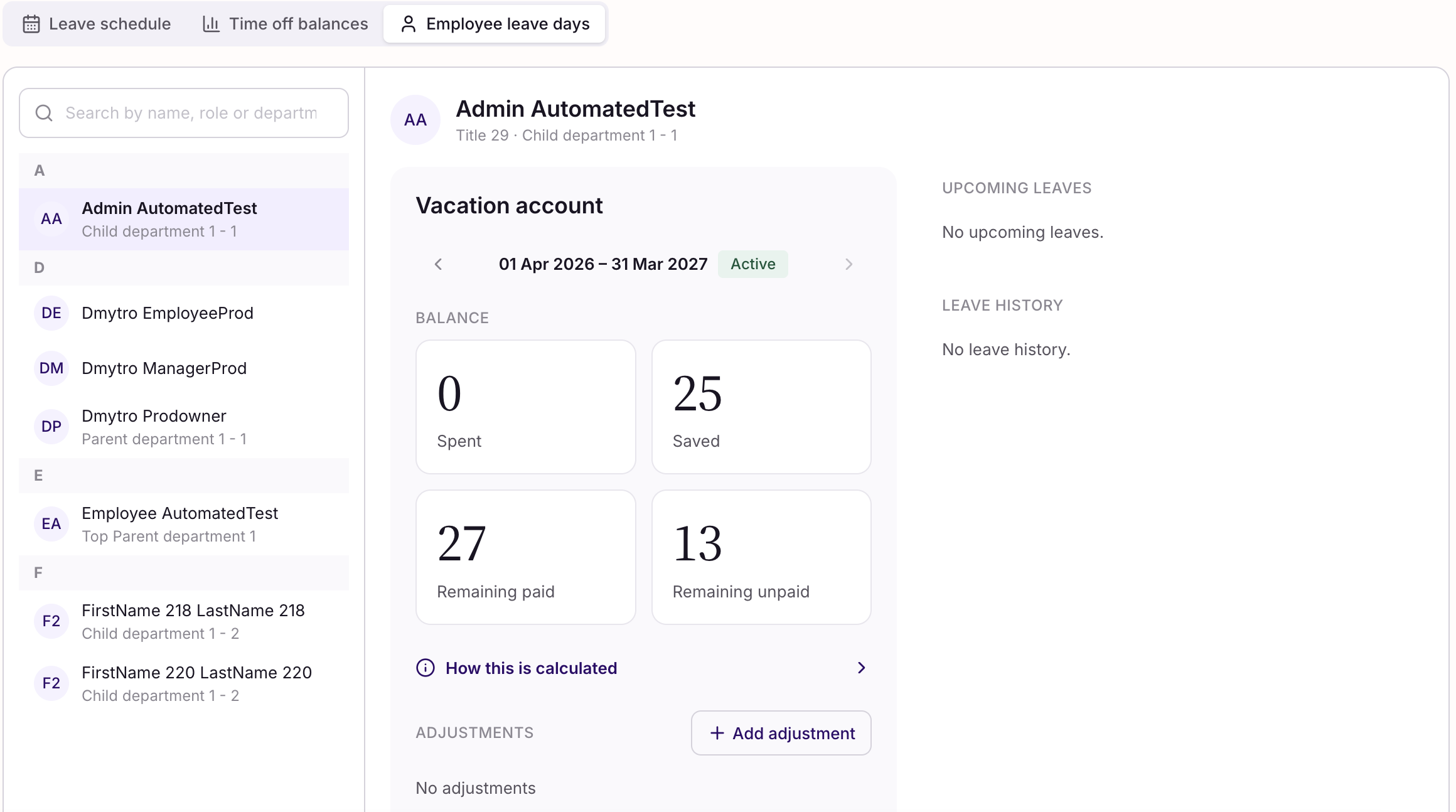
Need to check one person's record? Search for them in “Employee leave days” to see their balance broken down by account (spent, saved, remaining paid, remaining unpaid, depending on the leave type and country), plus their upcoming leaves and leave history. Admins can also add manual balance adjustments here, with a reason logged for the audit trail.
Who can see this
Time off overview is built for owners and admins. What you see is scoped to the Filter by selection, so you're never looking at more of the company than the filter allows.
Still have questions? Reach out to your Simployer contact or visit the Help Center for more articles on Time & Pay.
Was this article helpful?
That’s Great!
Thank you for your feedback
Sorry! We couldn't be helpful
Thank you for your feedback
Feedback sent
We appreciate your effort and will try to fix the article