Overview
The Microsoft Entra ID integration now supports additional data sync options beyond the core user sync. You can optionally enable:
Sync Option | Description |
|---|---|
| Custom Fields | Sync custom employee fields to Entra ID extension attributes |
| Teams | Sync Simployer teams as Entra ID security groups |
How to Configure
- Navigate to Company Settings → Integrations
- Find the Microsoft Entra ID section
- Click the Configure button
- Toggle on the desired sync options
- Click Save (or Re-authorize if additional permissions are required)

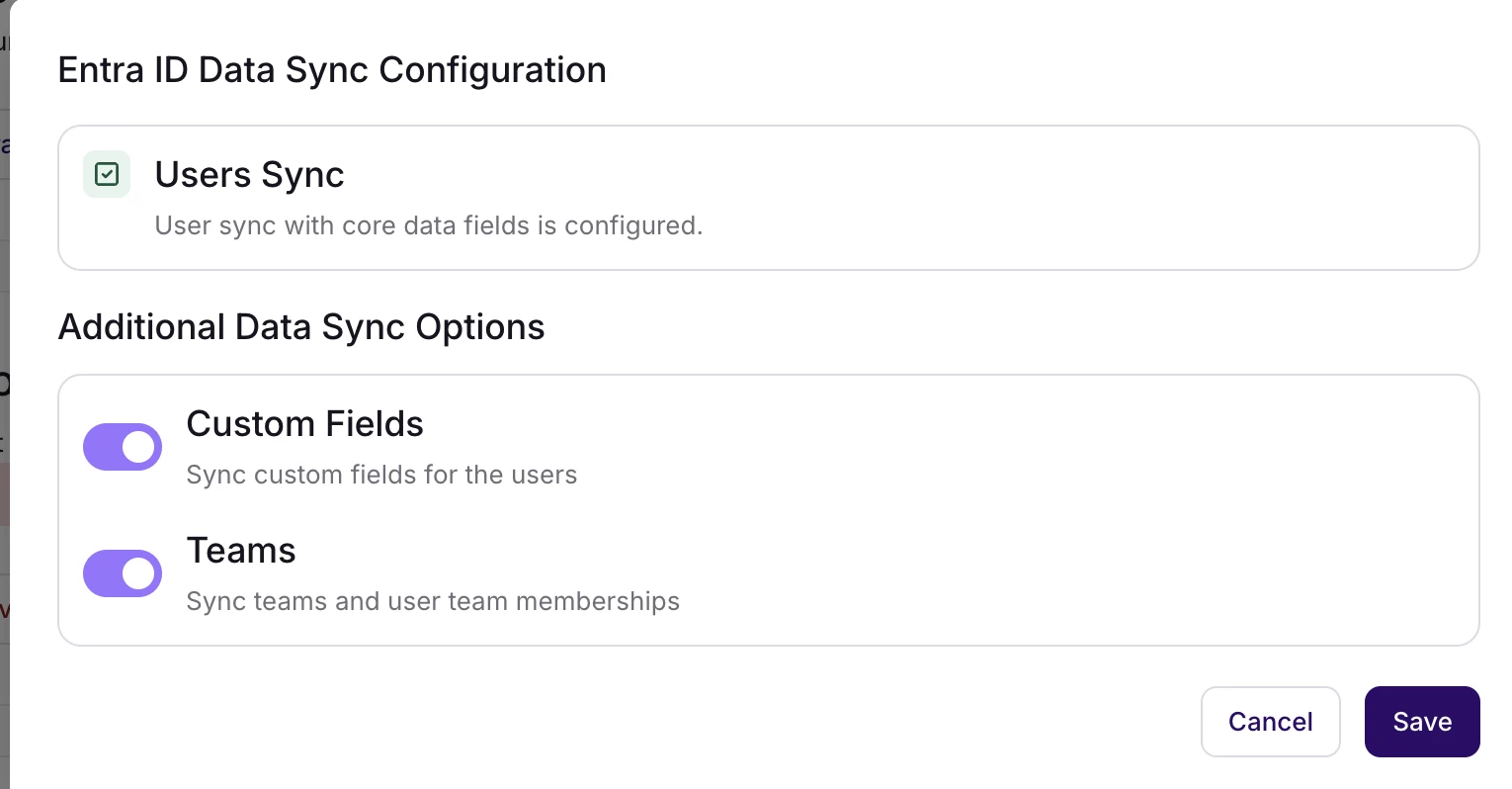
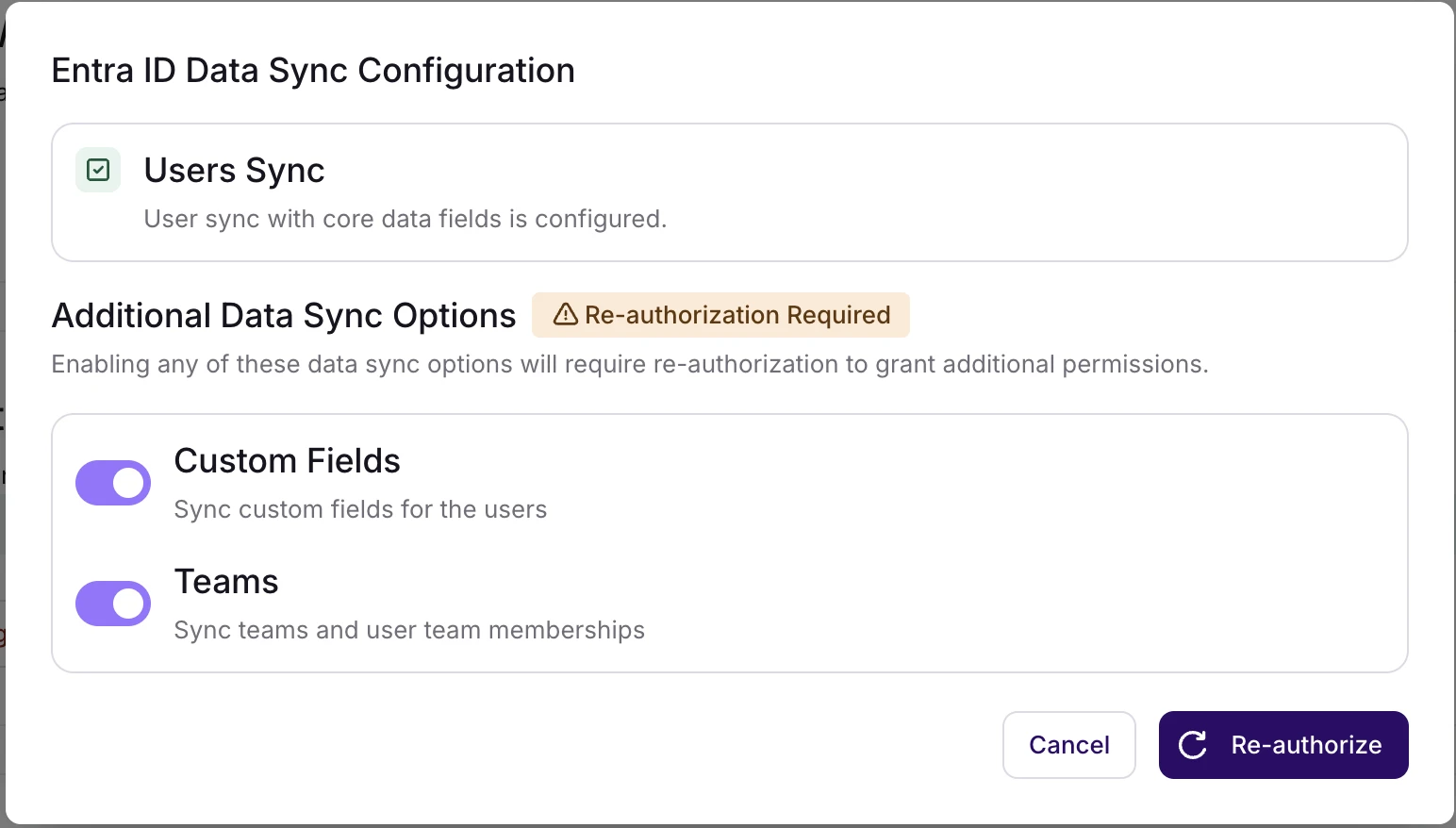
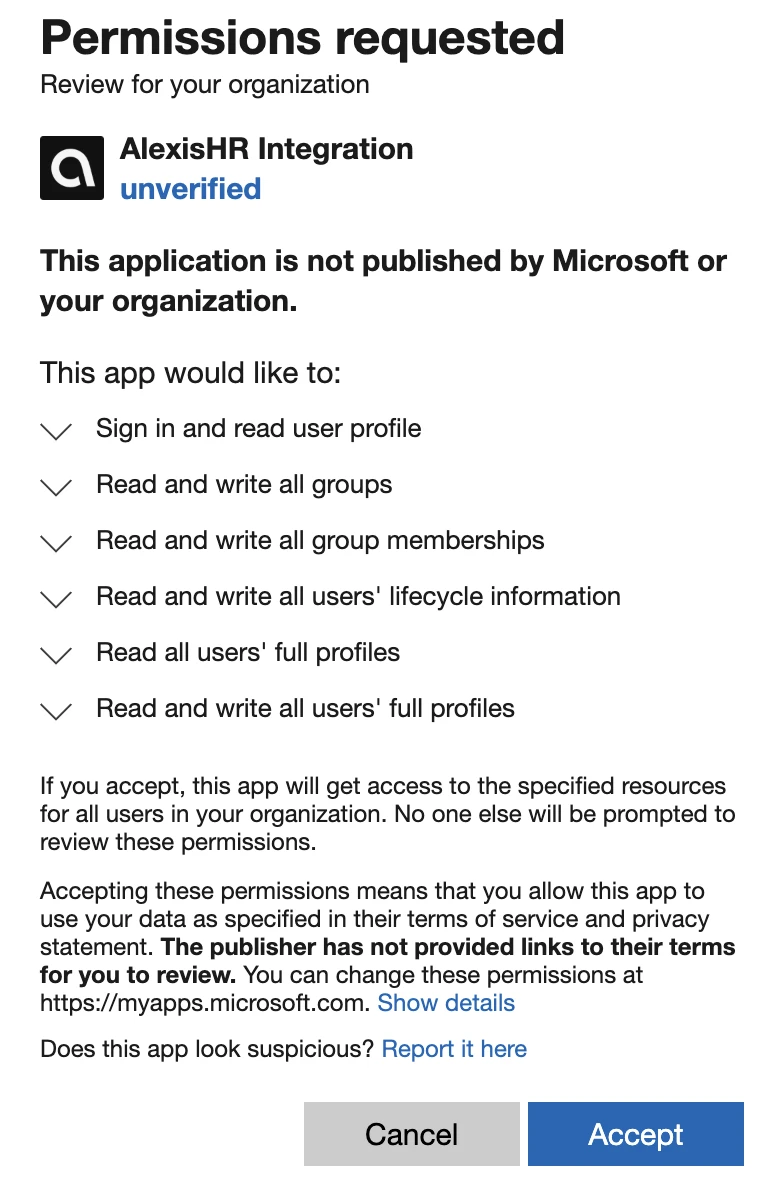
Re-authorization: You may need to re-authorize if required permissions are not already granted (depends on when your integration was set up). If needed, the dialog will show a warning and the Save button will change to Re-authorize.
Required permissions :
- Read and write all groups
- Read and write all group memberships
Sync Options
User Sync (Always Enabled)
Core user data is always synchronized.
Custom Fields
Syncs all active custom fields for Employee to Entra ID.
How it works:
Custom fields are stored as Entra ID Extension Properties. Each custom field gets its own extension property:
A metadata property tracks the total count:
Important notes:
- Only active custom fields are synced (archived fields are excluded)
- Extension properties are not visible in the Azure Portal - they can only be accessed via Microsoft Graph API
Use cases: Cost centers, employee categories, organization-specific data.
Teams
Syncs Simployer teams as Security Groups in Entra ID and manages user memberships automatically.
How it works:
Simployer | Entra ID |
|---|---|
| Team | Security Group (matched by exact name) |
| Team membership | Group membership |
Sync behavior:
- Team created → Security group created immediately
- Employee added/removed from team → Group membership updated
- Team renamed → Group renamed
- Team deleted → Group deleted
Group properties:
- displayName: Exact team name from Simployer
- securityEnabled: true
- mailEnabled: false
- description: "Auto-created group for team: {teamName}"
Use cases: Access control in Microsoft 365, SharePoint permissions, conditional access policies.
FAQ
Will this affect my existing user sync?
No. Core user sync continues unchanged.
What if I disable a sync option?
Future syncs stop, but existing data in Entra ID remains.
Do I need to re-authorize every time?
No. Only when enabling features that need permissions not already granted.
Troubleshooting
Changes not appearing in Entra ID:
- Verify the sync option is enabled
- Check that re-authorization was completed if required
- Ensure the employee has a valid work email matching an Entra ID user
Re-authorization fails:
Ensure you have admin privileges in your Entra ID tenant and permissions are not blocked by organizational policies.
Was this article helpful?
That’s Great!
Thank you for your feedback
Sorry! We couldn't be helpful
Thank you for your feedback
Feedback sent
We appreciate your effort and will try to fix the article