How to set up automatic workflows and highlights real-world HR scenarios to guide you
Automating workflows helps reduce manual effort, ensuring tasks are started and completed at the right time. With Workflows, you can trigger workflows automatically based on key events or manually when needed.
What Are Automatic Triggers?
A trigger is linked to a template and is what starts a workflow automatically. In Workflows, triggers allow you to automate processes, saving time and reducing manual effort.
Types of Automatic Triggers
Workflows can start automatically when specific lifecycle events occur:
- First Employment Start Date: Start workflows for onboarding processes based on an employee's employment start date, either X days before or X days after their start date.
- Employee Title Changed: Trigger workflows when an employee’s title is updated in their profile.
- Position Change to a Manager Role: Automate workflows when an employee transitions to a manager role (e.g., they go from having no direct reports to managing people).
- Sick Leave Reported: Start workflows to manage sick leave follow-ups after an employee has been absent for a defined number of consecutive days.
By using these triggers, you can ensure workflows are initiated at the right time, reducing manual effort and making processes smoother and more efficient.
Follow these steps to create an automatic template and automate workflows based on lifecycle events:
How to Set Up an Automatic Template
Step 1: Create a New Template
- Go to Company > Workflows > Manage Templates > Create Template
- Add a name and description for the template to clearly identify its purpose.
Step 2: Select an Automatic Trigger
- Under Trigger, select one of the available automatic triggers:
- First Employment Start Date: Trigger the workflow based on an employee’s start date (before or after X days).
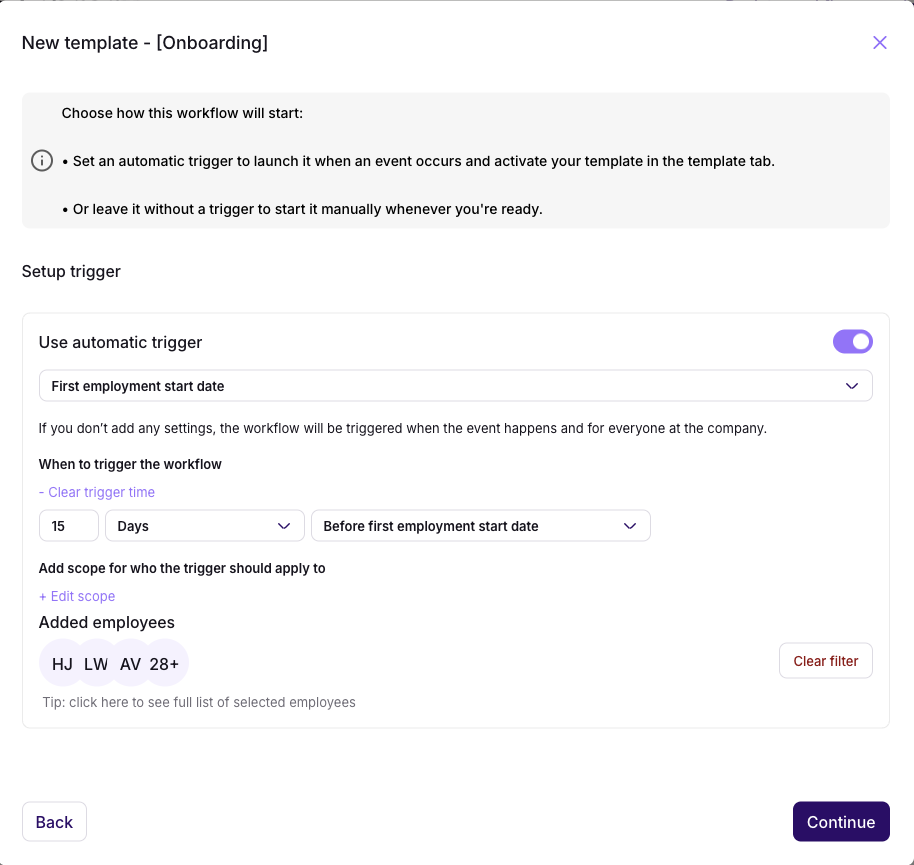
- First Employment Start Date: Trigger the workflow based on an employee’s start date (before or after X days).
- Employee Title Changed: Start the workflow when an employee's title is updated in their profile.
- Position Change to Manager Role: Trigger workflows when an employee becomes a manager (from no direct reports to managing people).
- Sick Leave Reported: Start workflows when an employee reports sick leave for a defined number of days.
- If this is an automatic template, define the scope to control which employees the workflow applies to:
- Select Teams, Departments, Offices, or Employment Types.
- Use exclusions to prevent specific individuals or groups from triggering the workflow.

Example:
You can set up a "Sick Leave Follow-Up" workflow to trigger only for employees in the Oslo Office after 3 consecutive days of reported sick leave.
Step 3: Set Up the List of Tasks
- Add tasks that need to be completed in the workflow:
- Define deadlines (e.g., “3 days after workflow start”).
- Include task owners (specific individuals or groups like teams or departments).
- Add links or instructions for each task to ensure clarity.
- Tasks will automatically appear in the relevant assignees’ task lists once the workflow is triggered.

Step 4: Preview and Save the Template
- Use the Preview to review all details, including:
- Tasks, deadlines, and assigned owners.
- The trigger and scope settings.
- Once reviewed, click "Save" to finalize the template.
Step 5: Activate the Template
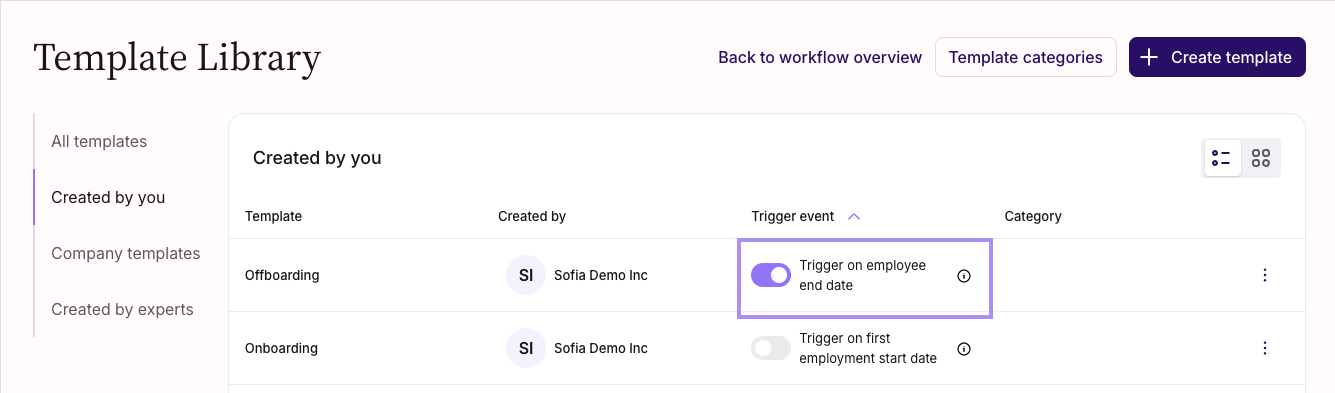
- Go to the Template Library page and find your newly created template.
- Toggle the trigger event ON to activate the workflow automation.
What Happens Next?
- Workflows will now start automatically whenever the selected trigger event occurs (e.g., an employee's employment start date).
- You can monitor active workflows from the Workflows Overview page.
Common Use Cases
Workflows help automate and streamline key HR processes. Here are practical examples where automatic workflows can save time and reduce manual effort:
1. Automate Onboarding Processes
- Trigger: First Employment Start Date (X days before or after the start date).
- Use Case: Automatically initiate an onboarding workflow for new hires to ensure tasks like IT setup, team introductions, and paperwork are completed on time.
- Example Tasks:
- Set up workstation (IT).
- Schedule first-day introduction meeting (HR).
- Assign a buddy for the first week (Manager).
2. Manage Role Transitions and Promotions
- Trigger: Employee Title Changed.
- Use Case: Automate workflows when employees are promoted or transition to new roles to ensure smooth handovers.
- Example Tasks:
- Update position in HR records.
- Arrange leadership training for new managers.
- Notify team members about the role transition.
3. Support Employees Transitioning to Manager Roles
- Trigger: Position Change to Manager Role.
- Use Case: Start workflows to prepare newly promoted managers for their responsibilities.
- Example Tasks:
- Enroll in manager training programs.
- Schedule a 1:1 with direct reports.
- Set up tools like access to reporting dashboards.
4. Follow Up on Long-Term Sick Leave
- Trigger: Sick Leave Reported (after X consecutive days).
- Use Case: Automatically start workflows to manage long-term absences and ensure compliance with regulations.
- Example Tasks:
- Check in with the employee (HR).
- Send required documentation for sick leave follow-up (Admin).
- Schedule a rehabilitation plan meeting (Manager).
Need More Help?
If you’d like to explore workflows further or need additional guidance, check out these detailed articles:
- Overview and Getting Started
- How to Use Manual Templates to Streamline Processes with Workflow Beta
- Save Time with Expert-Built Templates in Workflows Beta
Was this article helpful?
That’s Great!
Thank you for your feedback
Sorry! We couldn't be helpful
Thank you for your feedback
Feedback sent
We appreciate your effort and will try to fix the article